


 English
 Translate
Tailscale
Introduction to Tailscale
Tailscale is a WireGuard-based mesh networking tool. It can add NanoKVM Go, computers, phones, and other devices to the same virtual LAN, allowing you to access NanoKVM Go remotely without a public IP address or router port forwarding.
After joining a Tailscale network, each device receives a virtual IP address in the 100.x.x.x range. As long as the client device and NanoKVM Go are in the same Tailscale network (Tailnet), you can access NanoKVM Go through this address.
NanoKVM Go -- Tailscale virtual network -- remote computer or phone
This guide focuses on configuring Tailscale through the web interface to access NanoKVM Go remotely.
Prerequisites
Before starting, make sure that:
- NanoKVM Go is connected to the Internet;
- NanoKVM Go is accessible from the local network;
- the NanoKVM Go system and application are updated to the latest versions;
- the computer or phone used for remote access can install the Tailscale client.
If the Tailscale option is not available on the settings page, check for and install the latest NanoKVM Go system and application updates.
Differences from the Sipeed Remote Network
NanoKVM Go supports two connection methods. Sipeed Remote Network uses a control server provided by Sipeed and does not require a Tailscale account; see Sipeed Remote Network for setup. Tailscale, the method described in this guide, uses a control server provided by Tailscale and requires you to register and sign in. Either way, the Tailscale client must be installed on the computer or phone used for remote access.
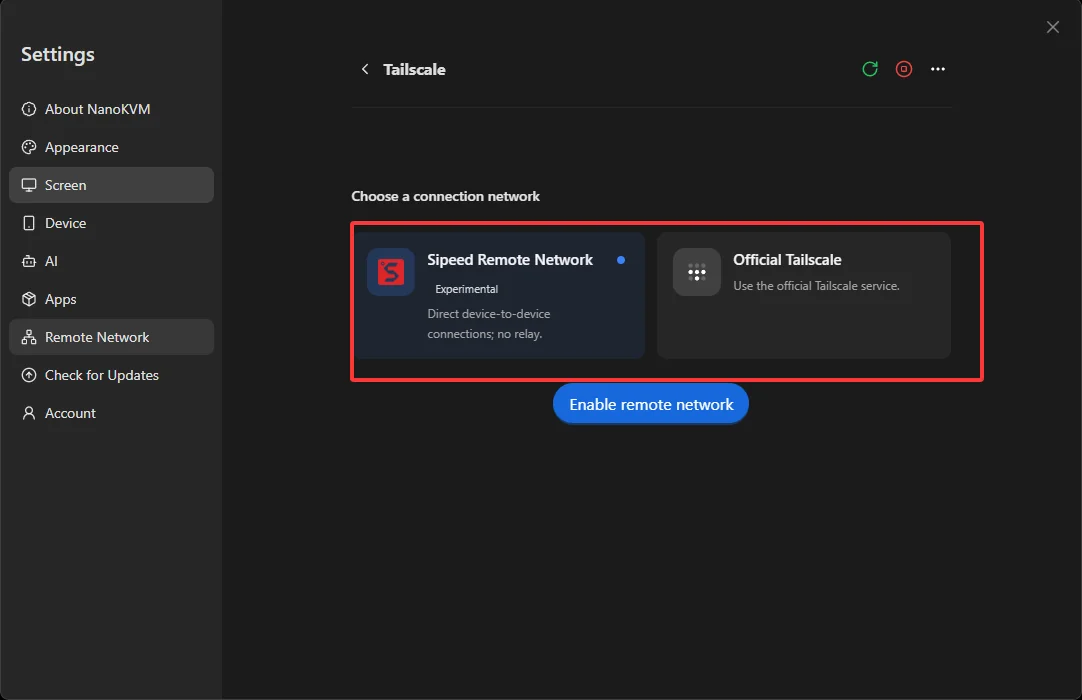
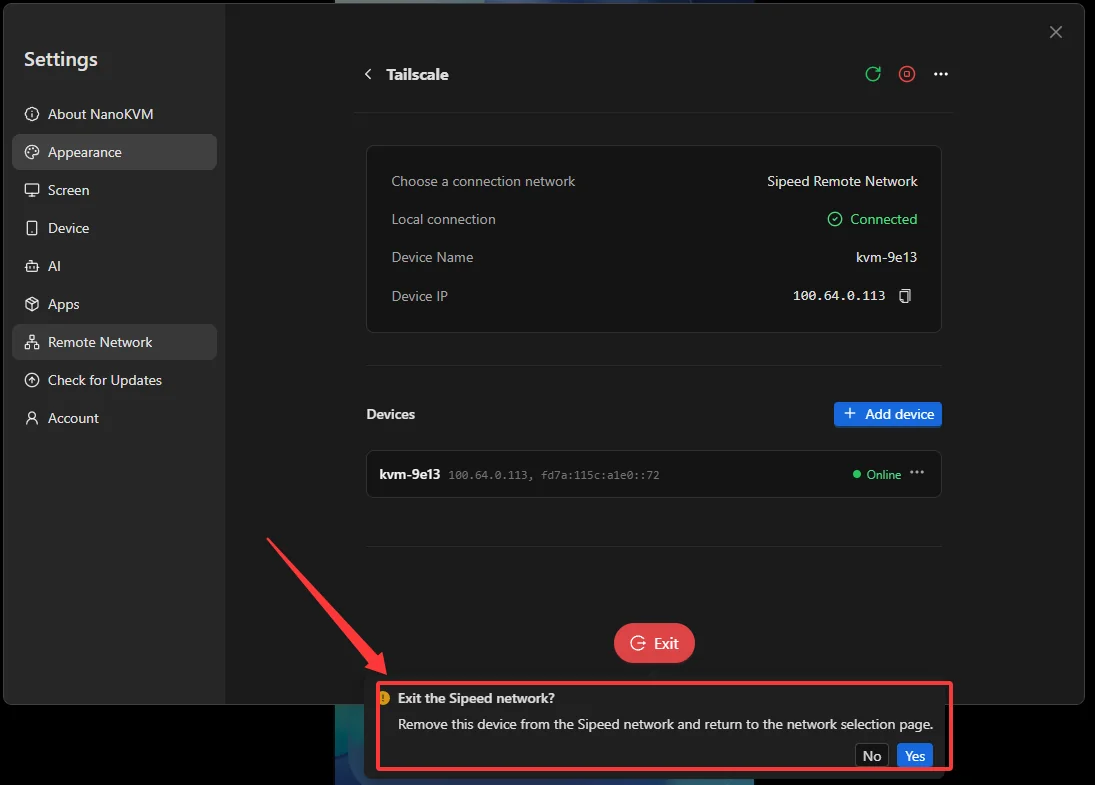
To switch from the method you are using to the other one, click Exit on the NanoKVM Go page and confirm. The device leaves its current network and returns to the Choose a connection network page, where you can select the other method.
Register and Log In to Tailscale
NanoKVM Go and the computer or phone used for remote access must join the same Tailscale network (Tailnet). If this is your first time using Tailscale:
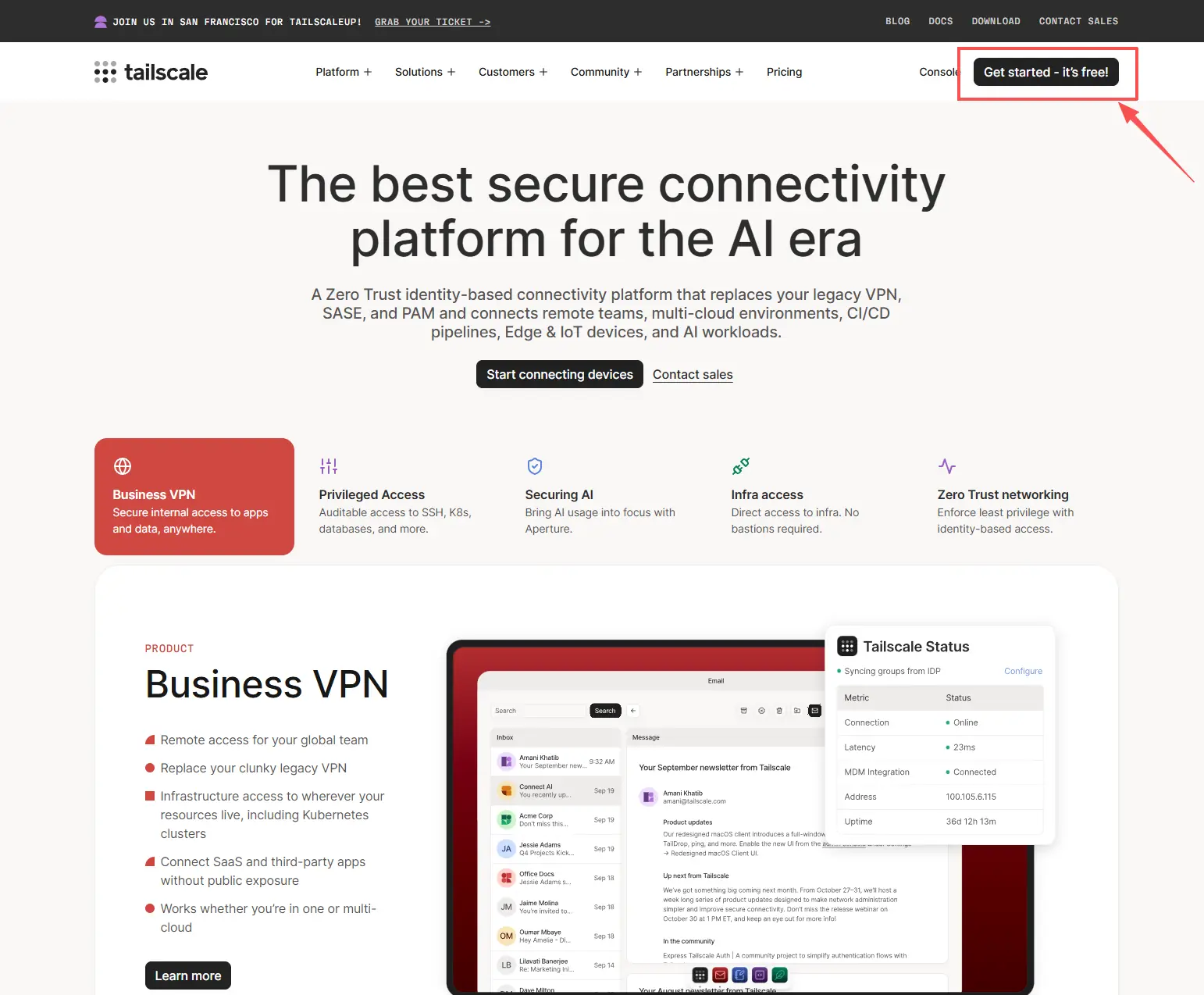
- Visit the Tailscale website;
- Click
Get startedorLog in;
- Sign in using one of the supported account providers;
- Follow the prompts to complete the initial authorization;
- Open the Tailscale admin console and select the
Machinesdevice list.
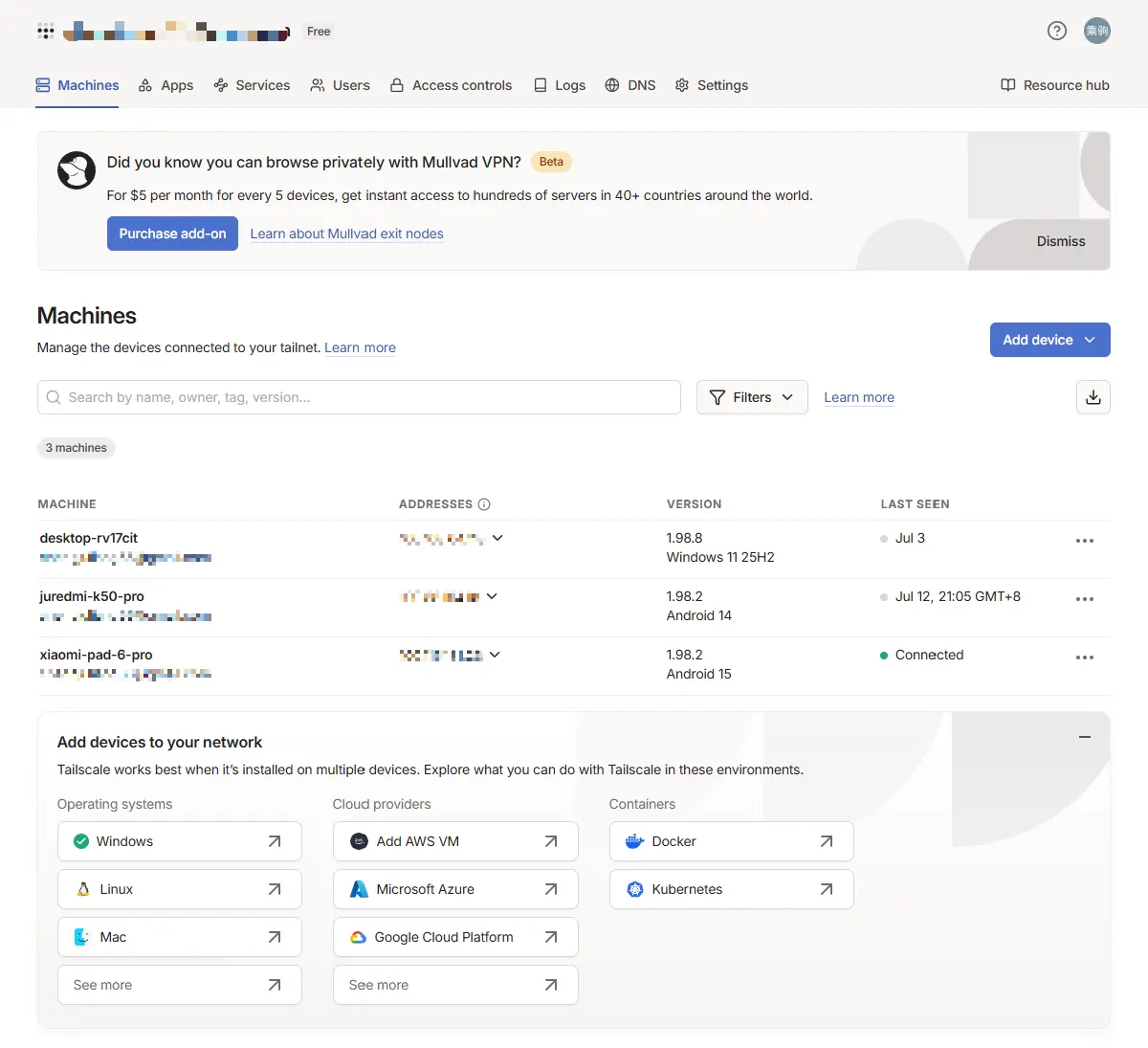
The Machines page is used to view and manage devices in the current Tailnet. After completing the following configuration, both NanoKVM Go and the client device will appear on this page.
Tailscale plans, organization management, and advanced network settings are not required for basic remote access and are not covered in this guide.
Enable Tailscale on NanoKVM Go
Open the Tailscale Settings
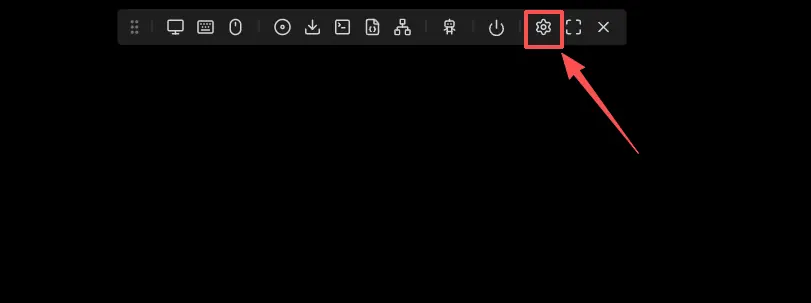
- Log in to the NanoKVM Go web interface and click the settings icon in the top toolbar.
- Select
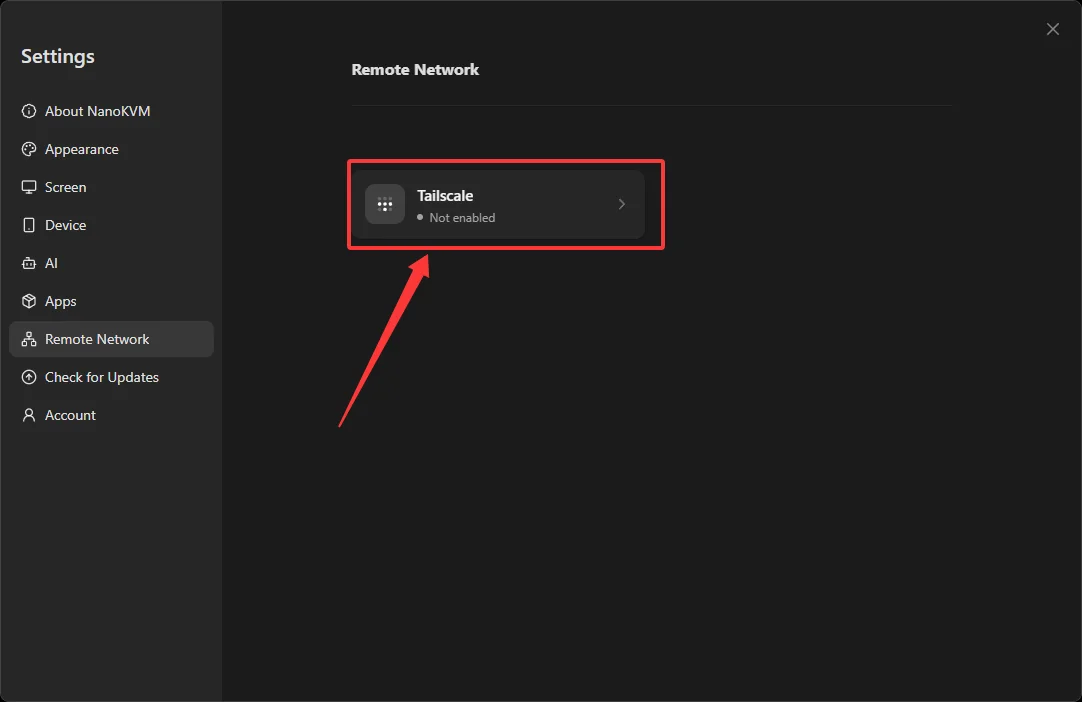
Remote Networkin the sidebar, then openTailscale.
Install or Start Tailscale
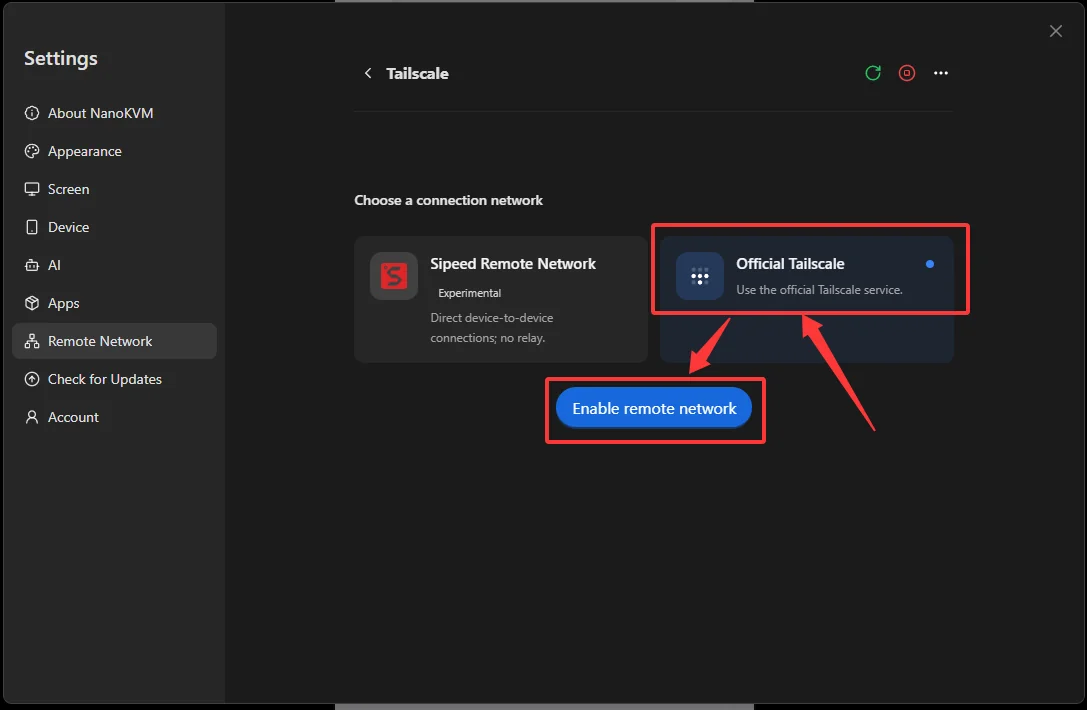
- Under
Choose a connection network, selectOfficial Tailscale, then clickEnable remote network.
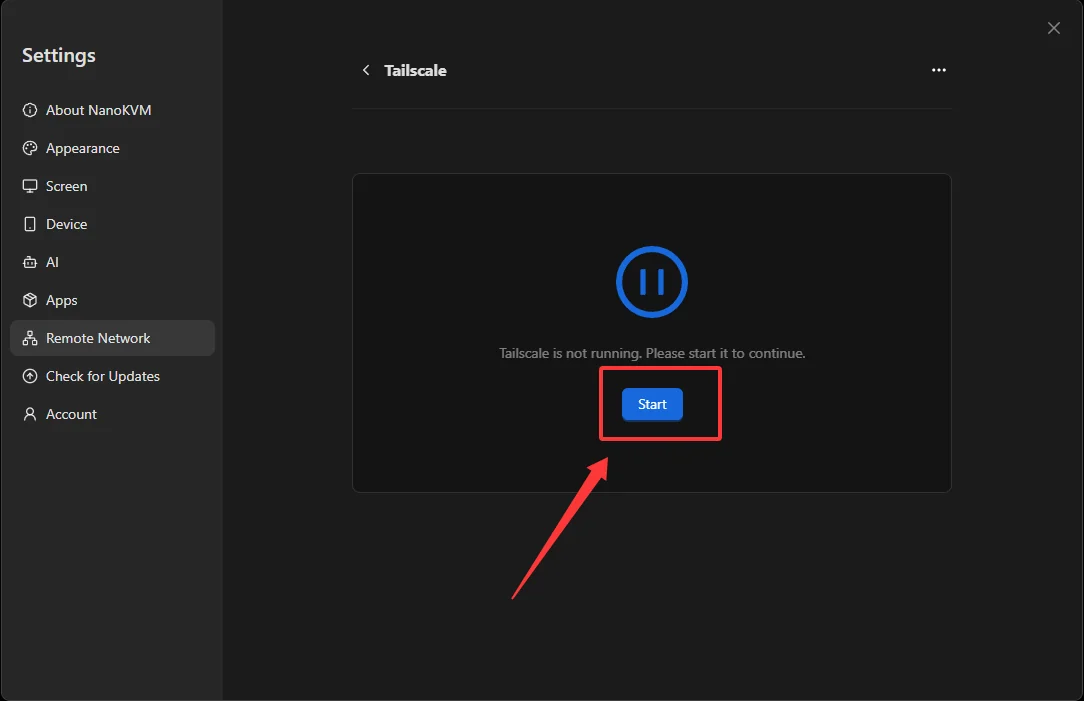
- If the page reports that Tailscale is not running, click
Startand wait for the service to start.
Log In to Tailscale
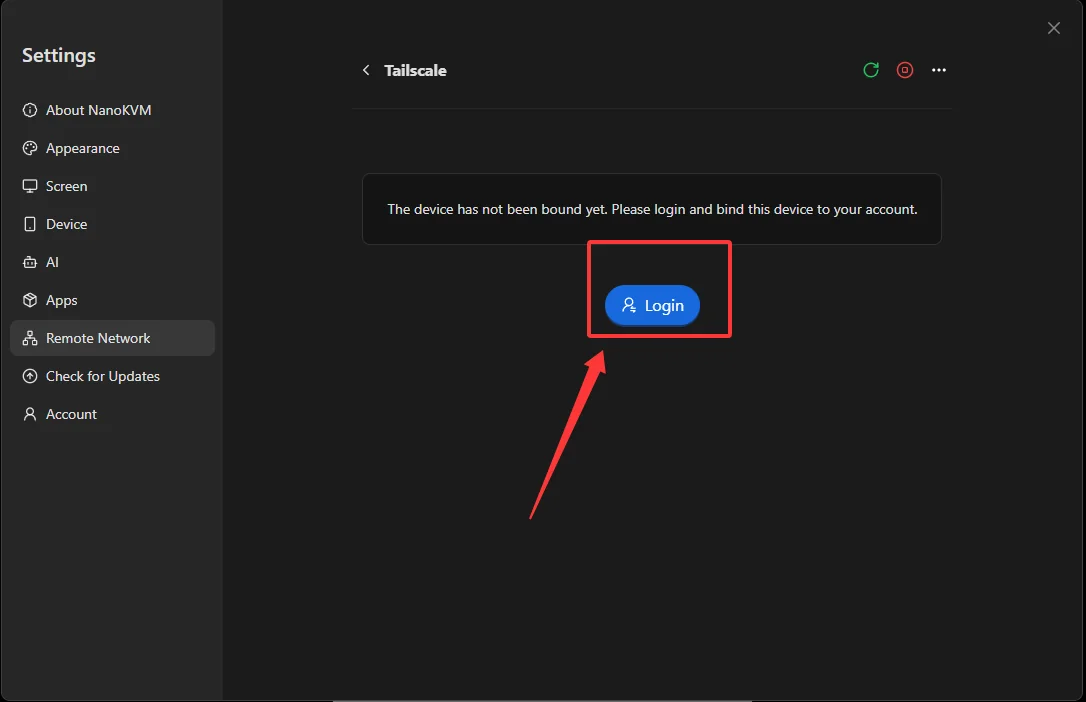
- After Tailscale starts, click
Login. The page generates a temporary authentication link and opens the Tailscale login page in the browser.
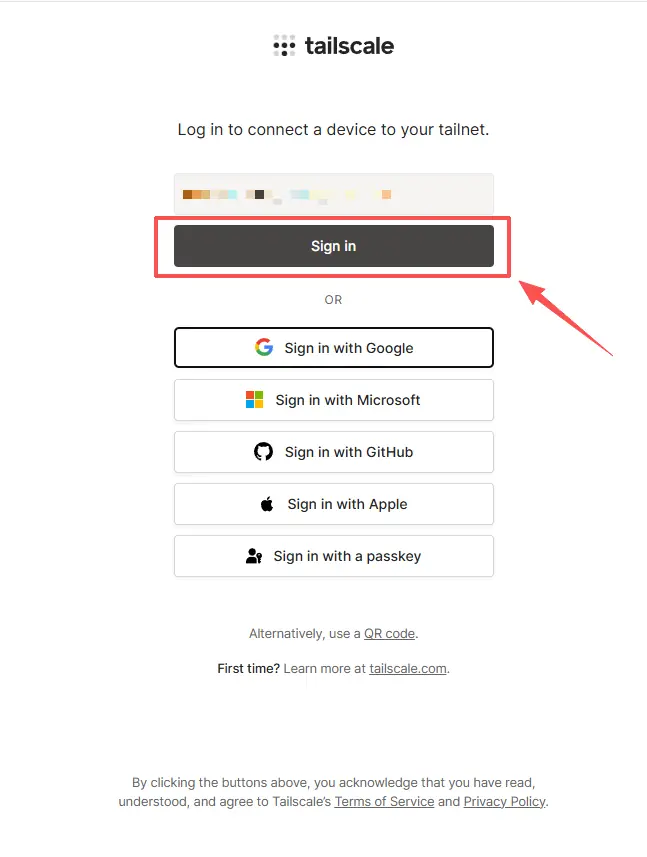
- Select the same account or sign-in method used earlier and complete authentication.
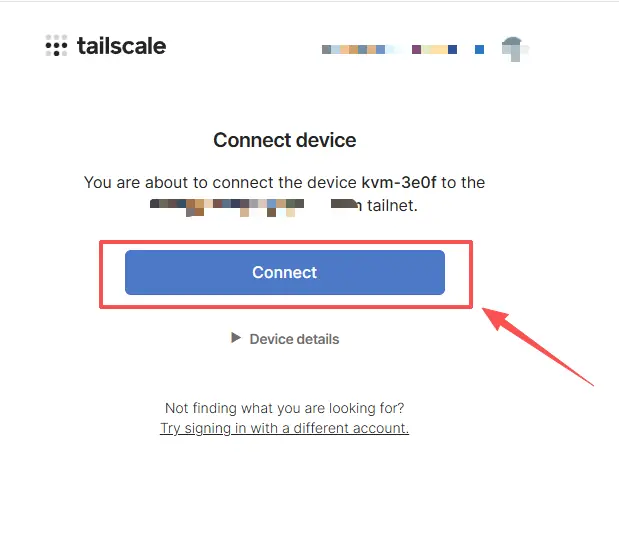
- Confirm that the device information is correct, then click
Connectto add NanoKVM Go to the current Tailnet.
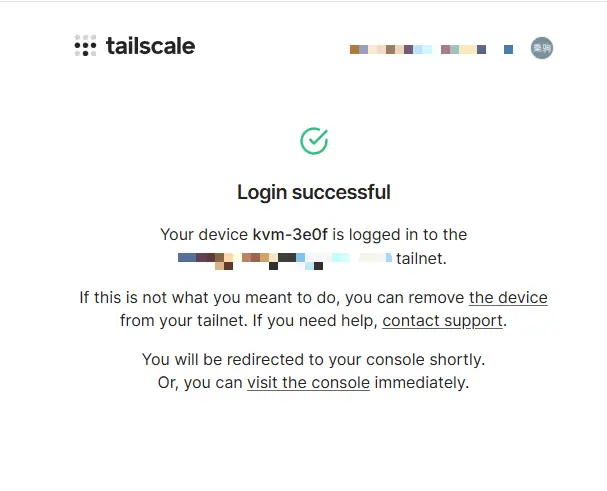
- When the page displays
Login successful, the Tailscale account authorization is complete.
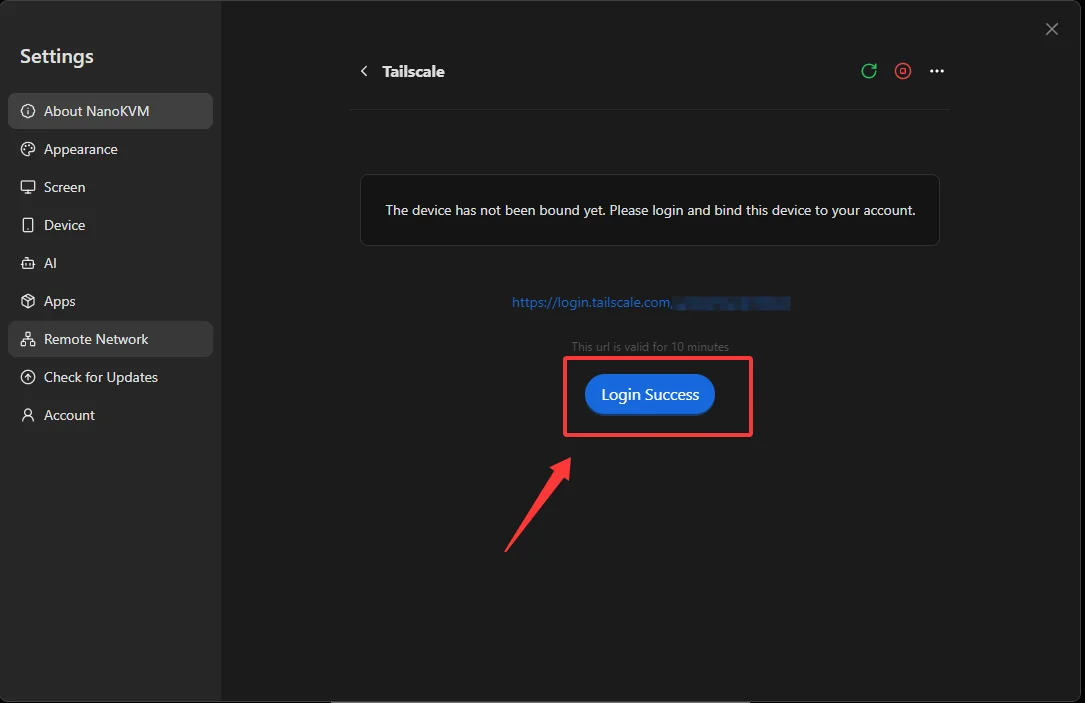
- Return to the NanoKVM Go web interface and click
Login Success.
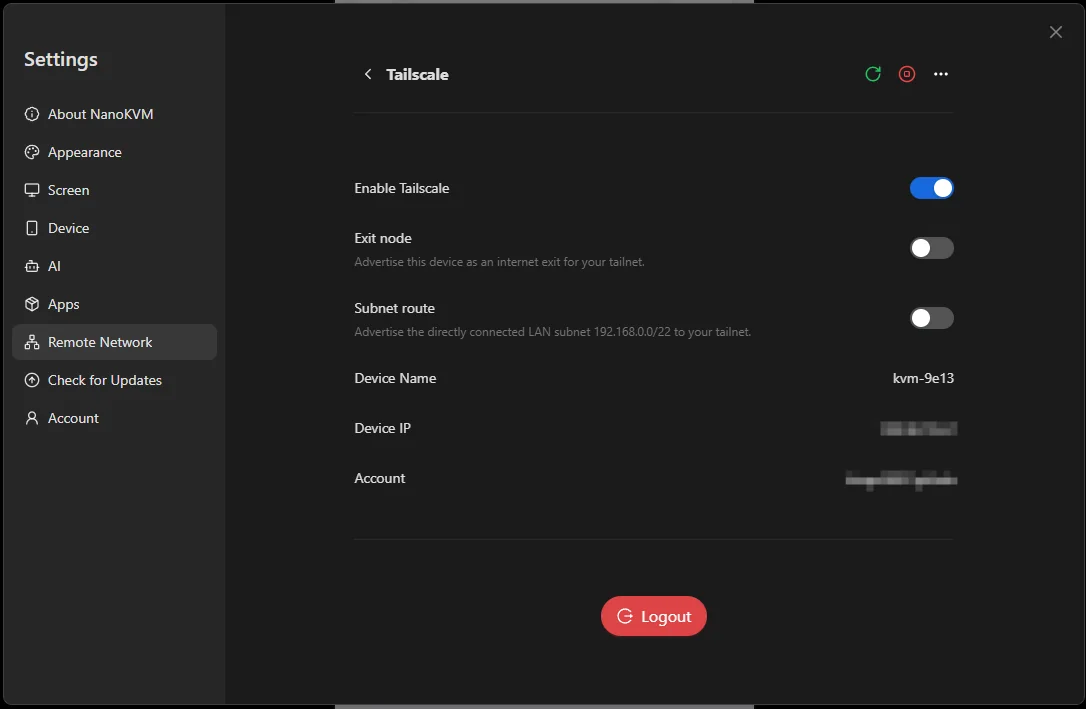
- Once
Device Name,Device IP, andAccountare displayed, NanoKVM Go has successfully joined the Tailnet.
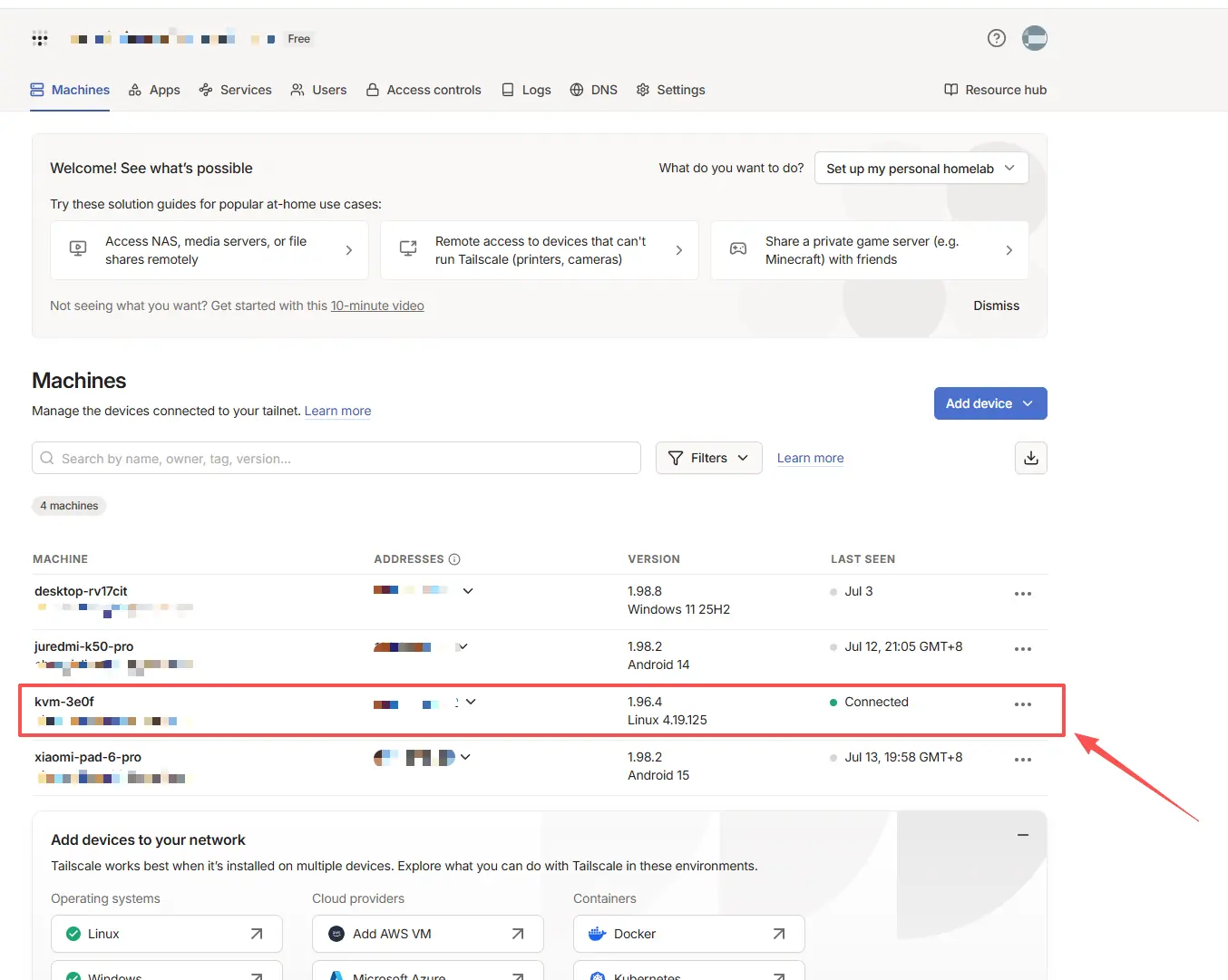
Confirm That NanoKVM Go Is Online
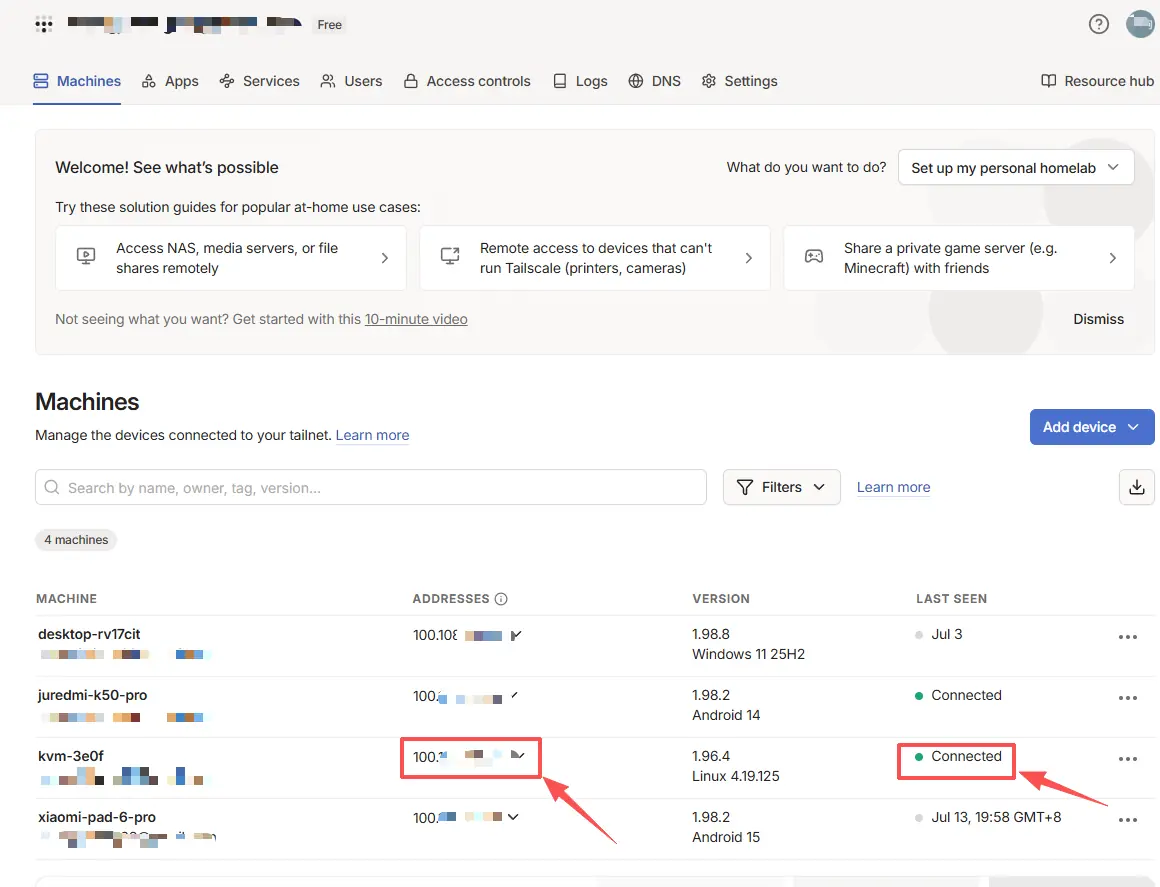
Open the Machines page in the Tailscale admin console and locate NanoKVM Go. A Connected status indicates that the device is online.
Install and Log In to Tailscale on the Client Device
Install Tailscale on the computer or phone that will remotely access NanoKVM Go. Official installation guides for each platform are listed below:
| Platform | Installation method |
|---|---|
| Windows | Follow the Tailscale for Windows installation guide to download and install the client |
| macOS | Follow the Tailscale for macOS installation guide to install it from the website or App Store |
| Linux | Follow the Tailscale for Linux installation guide to use the official installation script or package repository |
| Android | Follow the Tailscale for Android installation guide to install it from an official channel |
| iOS / iPadOS | Follow the Tailscale for iOS installation guide to install it from the App Store |
Tailscale is not listed in the App Store in mainland China. Sign in to the App Store with an Apple ID from another region before installing it.
After installation, connect the client device to the Tailnet:
- Start the Tailscale client and click
Log in; - Sign in with the same Tailscale account used by NanoKVM Go;
- Confirm that the client shows a connected status;
- Open the
Machinespage and confirm that both the client device and NanoKVM Go are online.
If the client device uses a different account, first invite that account to the Tailnet containing NanoKVM Go and grant it the required access permissions.
Find the Tailscale IP Address of NanoKVM Go
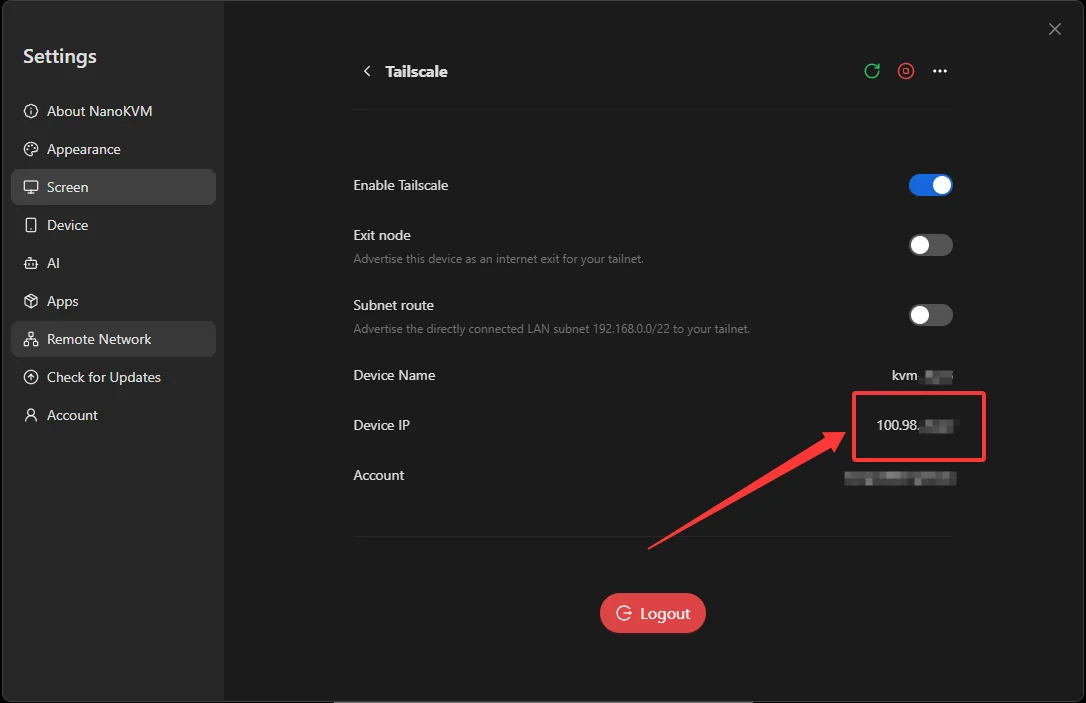
After NanoKVM Go joins the Tailnet, it receives a Tailscale IP address in the 100.x.x.x range. You can find this address in either of the following locations.
Find the Address in NanoKVM Go Settings
Open Settings > Remote Network > Tailscale on NanoKVM Go and find the address in the Device IP field.
Find the Address in the Tailscale Admin Console
Open the Machines page in the Tailscale admin console and find the Tailscale IP in the ADDRESSES column for NanoKVM Go.
Access NanoKVM Go Remotely (Tailscale IP)
Before connecting, confirm that both NanoKVM Go and the client device show Connected on the Machines page.
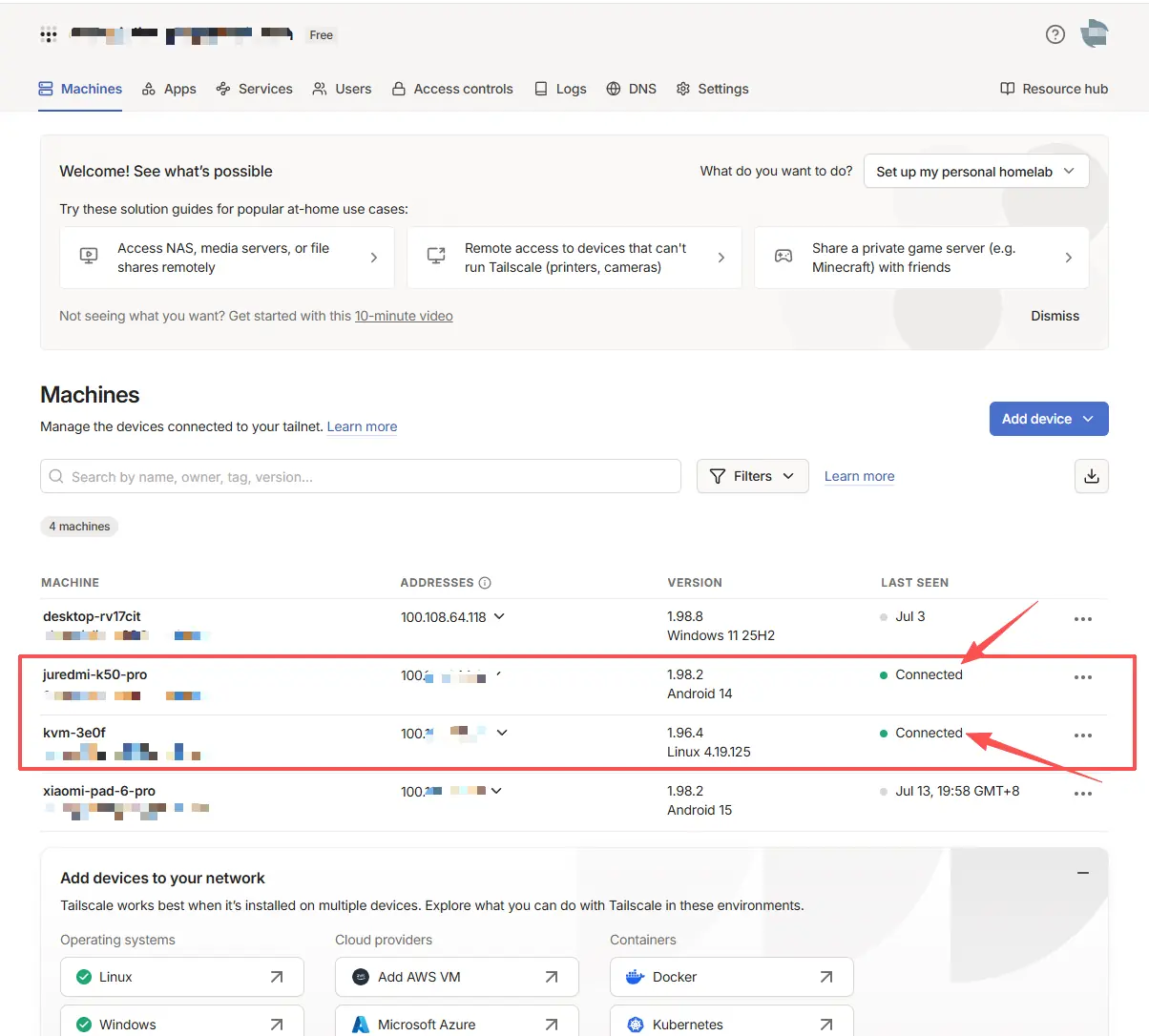
To ensure that the test uses an external network, disconnect the client device from the current LAN and use a phone hotspot or mobile network instead. Then follow these steps:
- Confirm that the Tailscale client is connected on the client device;
- Enter the Tailscale IP address of NanoKVM Go in the browser address bar, for example,
http://100.x.x.x; - Open the NanoKVM Go login page and sign in;
- Test remote video, keyboard and mouse control, power control, and other features.
If the page cannot be opened, confirm that both devices use the same Tailnet and that NanoKVM Go and the client device are still online.
Everyday Use and Security Recommendations
- Enable two-factor authentication for the Tailscale account;
- set a strong password for NanoKVM Go and keep its own login authentication enabled;
- do not expose additional NanoKVM Go ports on the router;
- do not share Tailscale device authentication links with others;
- regularly review the Tailscale admin console and remove unused devices;
- in multi-user environments, use ACLs or Grants to restrict device access;
- regularly update NanoKVM Go and the Tailscale client to receive the latest features and security fixes.