


 English
 Translate
MCP Feature
Introduction
The MCP feature on NanoKVM Go lets MCP-compatible AI tools connect to NanoKVM Go, so the AI tool can view and control the target device through NanoKVM Go.
After the connection is configured, the AI tool can use the target device screen content to assist with clicking, typing, opening applications, changing settings, troubleshooting issues, and performing repetitive operations. This feature is useful for remote maintenance, system configuration, troubleshooting, and assisted automation.
The MCP feature gives the AI tool the ability to operate the target device. Use trusted AI tools only, and do not expose the MCP service on untrusted networks.
How It Works
After MCP is enabled on NanoKVM Go, the AI tool on the control device connects to the MCP service using the Endpoint and API Key shown on the NanoKVM Go page. The AI tool does not connect to the target device directly. Instead, it gets screen content and sends control operations through NanoKVM Go.
The connection flow is:
AI tool on the control device
        |
        | MCP
        v
NanoKVM Go
        |
        | KVM control
        v
Target device
In this flow:
- The target device is connected to NanoKVM Go through USB-C;
- NanoKVM Go captures the target device screen and sends keyboard and mouse operations to the target device;
- The AI tool on the control device connects to NanoKVM Go through MCP;
- After the user sends an instruction in the AI tool, the AI tool controls the target device through NanoKVM Go.
Preparation
Before using MCP, make sure that:
- NanoKVM Go is connected to the target device;
- The NanoKVM Go web control page can display the target device screen correctly;
- NanoKVM Go is connected to the network and has obtained an IP address;
- The control device can access the MCP endpoint shown by NanoKVM Go;
- The control device has an MCP-compatible AI tool installed, such as OpenCode or another MCP client;
- The NanoKVM Go system and application versions support MCP.
If the MCP option is not shown, check whether the NanoKVM Go system and application have been updated to a version that supports MCP.
Enable MCP
- Connect NanoKVM Go to the target device and confirm that the target device screen is displayed correctly.
- Enter the NanoKVM Go IP address in a browser to open the NanoKVM Go web control page.
- Log in to NanoKVM Go.
- Open the settings page.

- Find the MCP option.
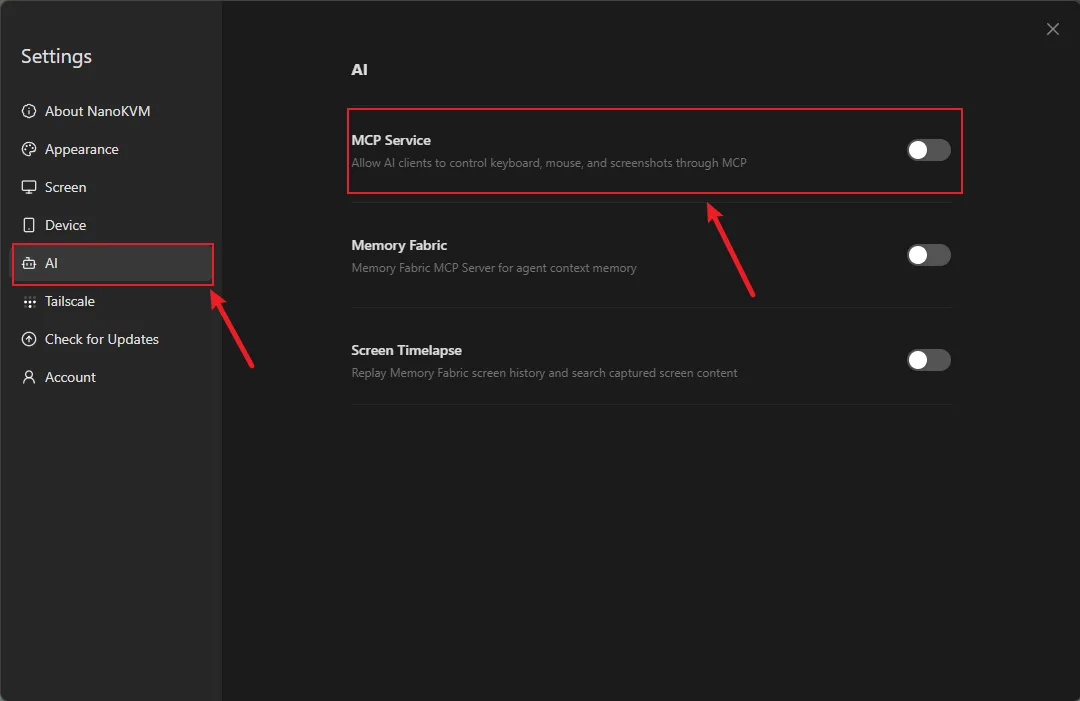
- Turn on the MCP switch.
- Record the
EndpointandAPI Keyshown on the page.
Add MCP to an AI Tool
Different AI tools use different MCP configuration methods. This section uses OpenCode as an example.
Get the Endpoint and API Key
After MCP is enabled on NanoKVM Go, the page shows an Endpoint and an API Key.
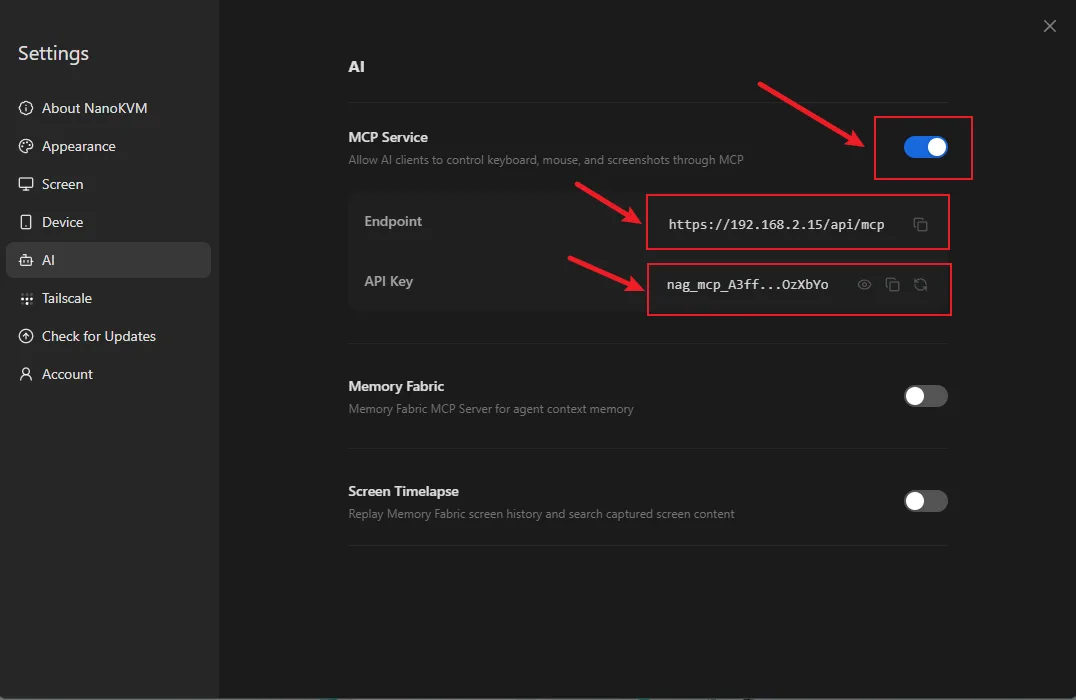
In this section:
Endpointis the full URL of the NanoKVM Go MCP server, for examplehttps://192.168.2.15/api/mcp;API Keyis the credential used to access the NanoKVM Go MCP server.
When configuring an AI tool, copy the endpoint shown on the page directly. You do not need to split it into an IP address and a port.
Add MCP to OpenCode
OpenCode supports adding a remote MCP server through the global configuration file.
Create or edit the following configuration file:
~/.config/opencode/opencode.json
Configuration example:
{
  "$schema": "https://opencode.ai/config.json",
  "mcp": {
    "nanokvm-go": {
      "type": "remote",
      "url": "<Endpoint>",
      "oauth": false,
      "headers": {
        "Authorization": "Bearer <API-Key>"
      }
    }
  }
}
Replace:
<Endpoint>with theEndpointshown on the NanoKVM Go MCP page;<API-Key>with theAPI Keyshown on the NanoKVM Go MCP page.
NanoKVM Go MCP uses HTTPS. When using OpenCode on Linux, set the following environment variable before starting OpenCode:
export NODE_TLS_REJECT_UNAUTHORIZED=0
opencode
You can also start OpenCode with a single command:
NODE_TLS_REJECT_UNAUTHORIZED=0 opencode
The
NODE_TLS_REJECT_UNAUTHORIZEDenvironment variable disables TLS certificate verification for the current OpenCode process. Use it only when connecting to NanoKVM Go MCP on a trusted LAN. Do not use it long term on untrusted networks.
After saving the configuration, restart OpenCode. Then check whether the MCP server is connected:
NODE_TLS_REJECT_UNAUTHORIZED=0 opencode mcp list
If nanokvm-go is shown as connected, OpenCode has successfully connected to NanoKVM Go MCP.
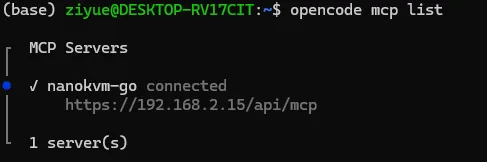
After the connection succeeds, you can send an instruction to OpenCode and let OpenCode view and control the target device through NanoKVM Go MCP.
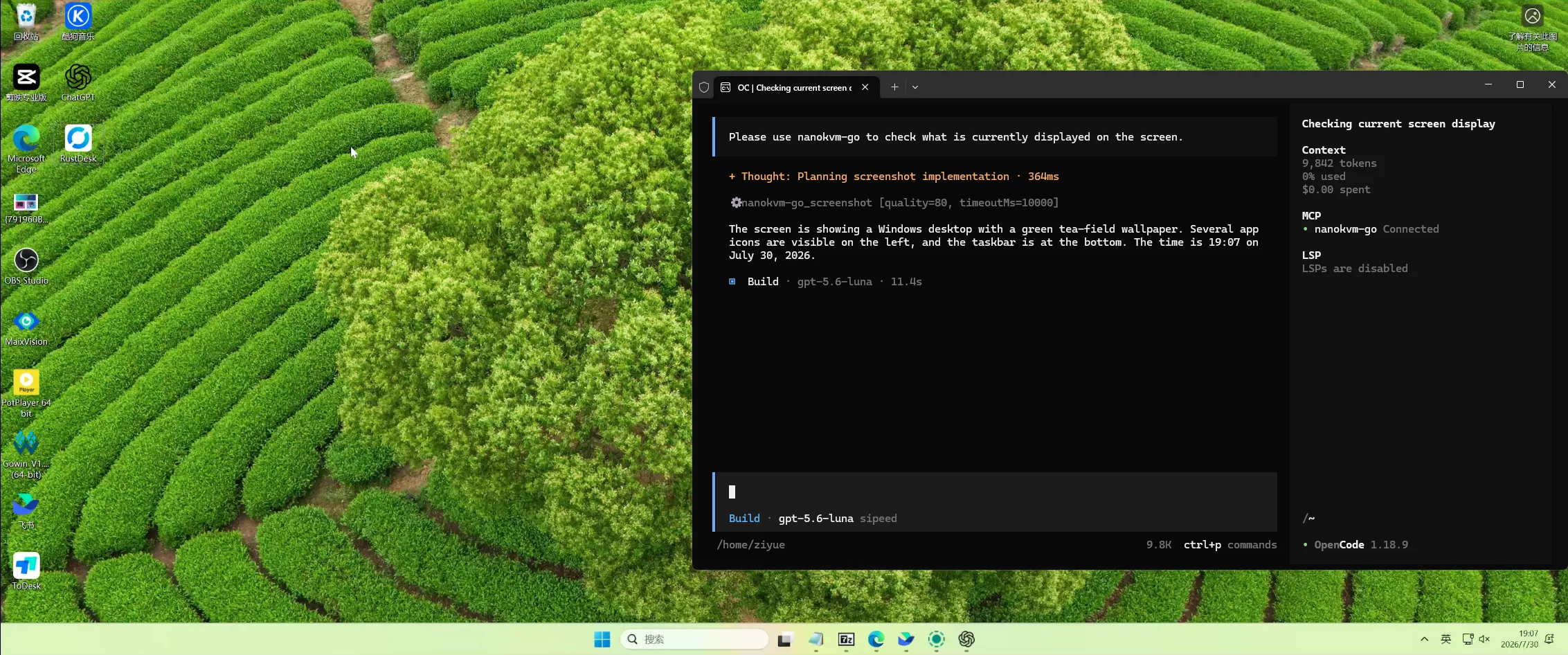
To restore the default security behavior, close the current terminal and open a new one. You can also run:
unset NODE_TLS_REJECT_UNAUTHORIZED
Other AI Tools
Other MCP-compatible AI tools can also try connecting to NanoKVM Go MCP. Support for remote MCP, HTTPS, and tool-call permissions varies between tools and versions.
If an AI tool cannot handle the HTTPS connection used by NanoKVM Go, a reverse proxy such as Nginx may be required to handle certificates. This setup is more complex and is not recommended as the first choice for general users.
Usage Examples
After the connection succeeds, you can describe the operation you want to perform in natural language. For example:
Use NanoKVM Go to check the current screen and tell me which page the target device is on.
Use NanoKVM Go to click the Settings button on the screen.
Use NanoKVM Go to open a terminal and type ifconfig to check the network information.
Use NanoKVM Go to continue the system installation process based on the current screen.
Start with simple and easy-to-confirm operations, such as reading the screen, clicking a clear button, or typing a short command. For high-risk operations such as deleting files, formatting disks, or changing system configuration, confirm the action before allowing the AI tool to proceed.
FAQ
The AI Tool Cannot Connect to NanoKVM Go MCP
Check:
- Whether the NanoKVM Go MCP switch is turned on;
- Whether the MCP endpoint is correct;
- Whether the
API Keyis correct; - Whether the control device and NanoKVM Go can reach each other over the network;
- Whether the AI tool can skip or handle NanoKVM Go HTTPS certificate verification;
- Whether a firewall, router, VPN, or security software is blocking the connection;
- Whether NanoKVM Go is connected to the network and shows an IP address.
The AI Tool Can Connect to MCP, but Cannot Control the Target Device
Check:
- Whether the NanoKVM Go web control page can display the target device screen correctly;
- Whether the target device is connected to NanoKVM Go correctly;
- Whether the current target device screen requires unlocking, login, or manual confirmation;
- Whether the AI tool allows MCP tool calls;
- Whether keyboard and mouse control works normally in NanoKVM Go.
The MCP Switch Is Not Shown
Check:
- Whether the NanoKVM Go system or application version is too old;
- Whether the current version supports MCP;
- Whether the KVM App needs to be updated from the web control page;
- Whether the settings page has been reopened after the update.
Security Notes
- MCP gives the AI tool the ability to operate the target device. Connect only trusted AI tools;
- Do not expose the MCP service directly to the public Internet;
- Do not expose the MCP endpoint on untrusted networks;
- Turn off MCP when it is not needed;
- Confirm the AI tool's action before operating important devices;
- Do not leak the NanoKVM Go MCP
API Key; - When entering passwords, keys, tokens, or other sensitive information, make sure the AI tool and network environment are trusted.