


 English
 Translate
Slogic16U3 User Guide
👷♂️ This guide is under active development — thank you for your patience!
Revision History
| Date | Version | Author | Description |
|---|---|---|---|
| 2024-09-23 | v0.1 | Sipeed Team | Initial draft |
Table of Contents
- Overview
- Specifications
- Hardware Connection
- Software Installation
- Software Usage
- Build Software from Source
- Firmware Update
- FAQ
Overview
Slogic16U3 is a high-performance logic analyzer for digital signal debugging and analysis.
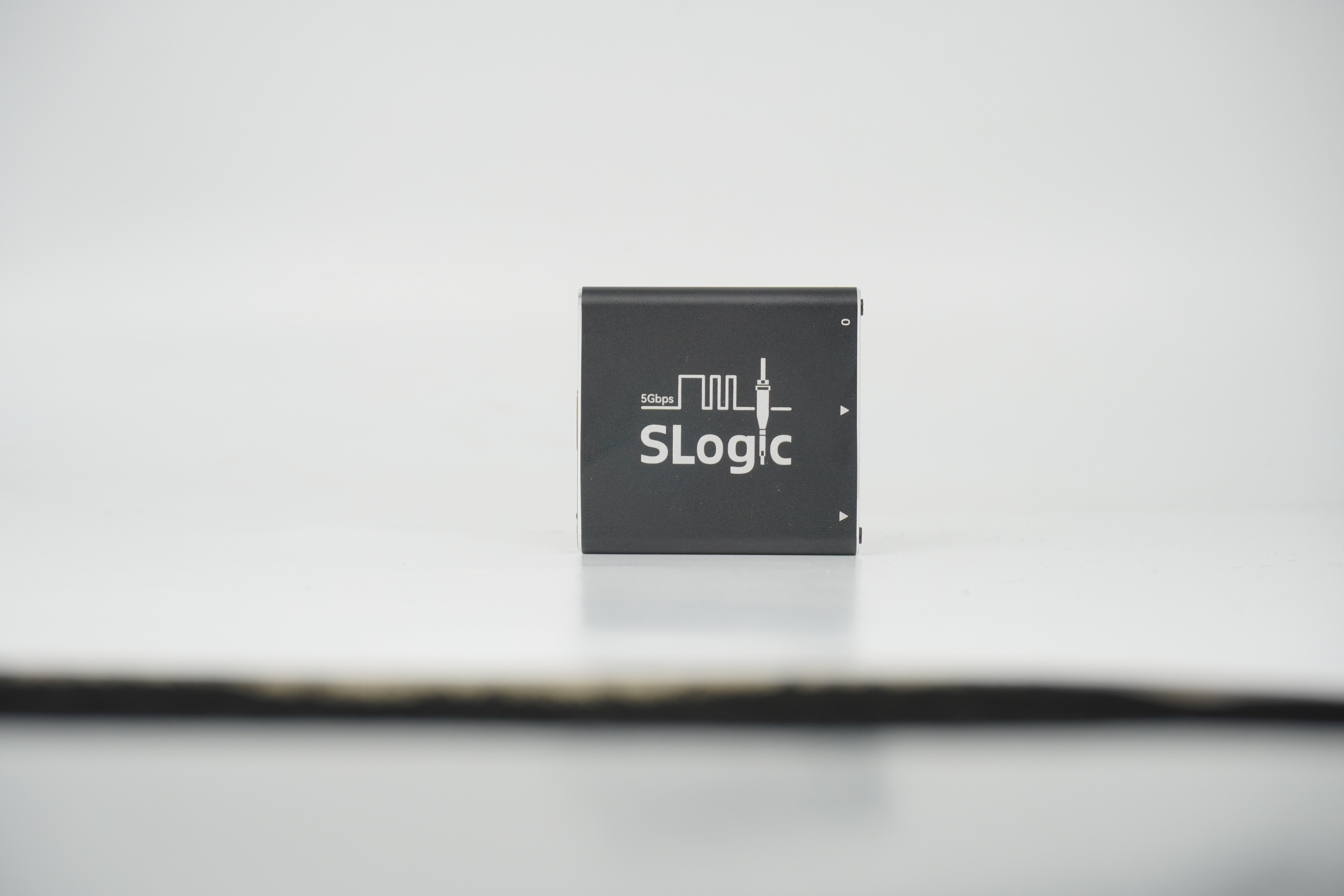
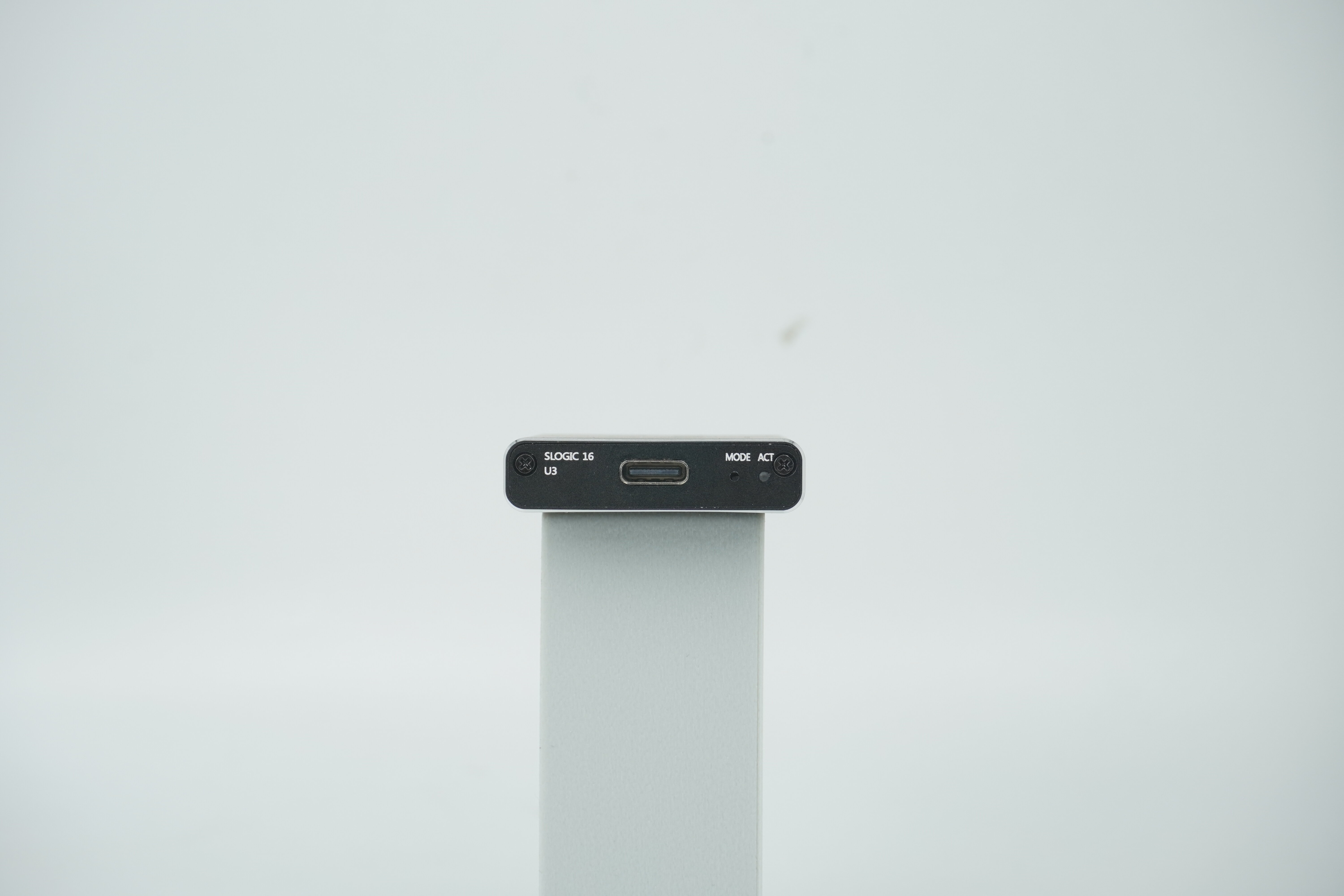
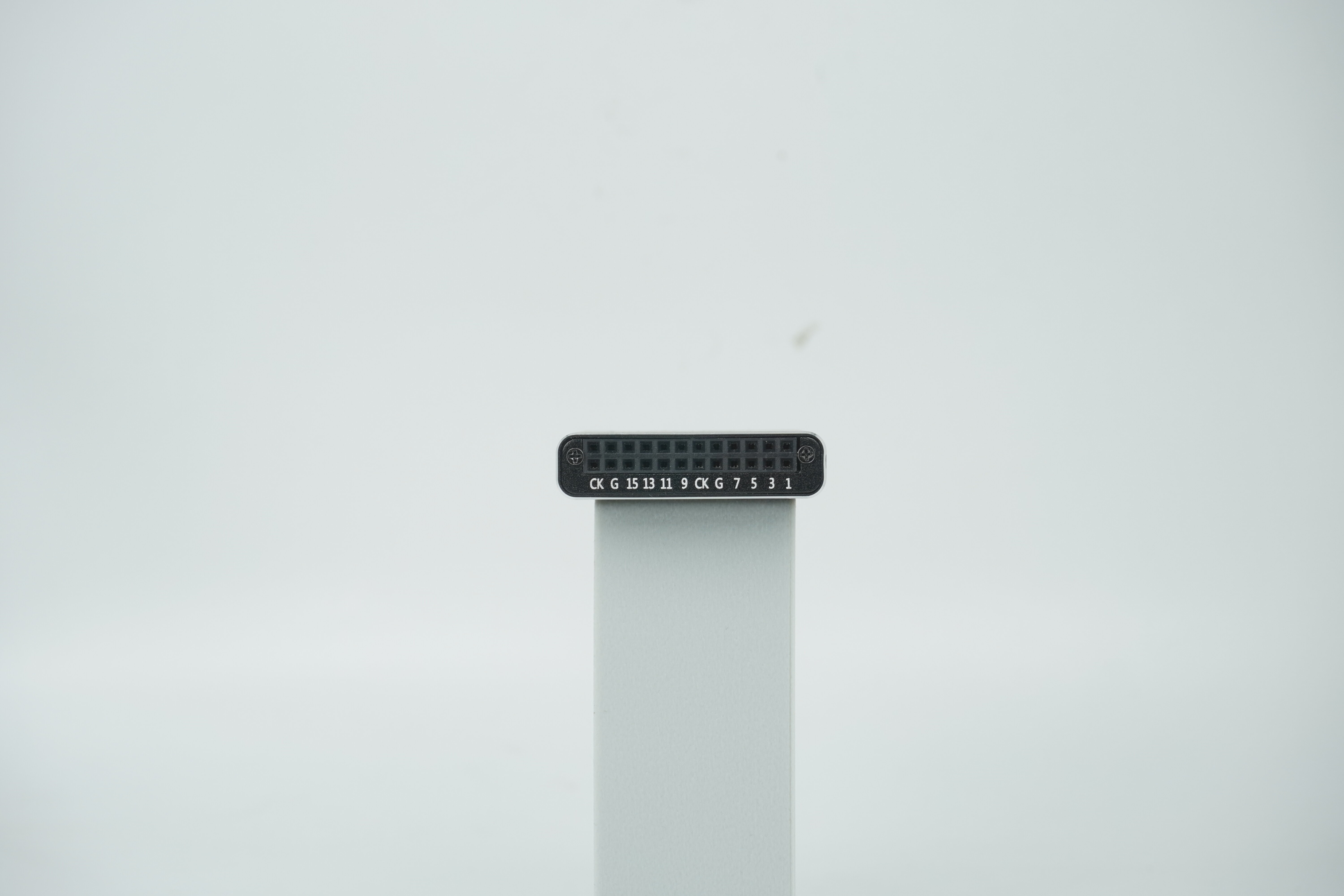
Specifications
- Channels: 16
- Max Sampling Rate: 800 MHz
- Memory Depth: Unlimited
- Interface: USB 3.0 (5 Gbps)
- Power Supply: USB powered (5V 900mA)
- Dimensions: 150 × 100 × 30 mm
Hardware Connection
- USB-C to C or USB-A to C cable:
- PC USB-A → USB-A/C to USB-C → SLogic
- PC USB-C → USB-C to USB-C → SLogic
- Indicators: Multi-color (see FAQ)
- Accessories: Standard Dupont wires, high-speed shielded wires
Software
Supported OS and Tested Platforms
| OS / Platform | Supported | Example Platform |
|---|---|---|
| Windows (x86_64) | Yes | Ultra 5 125H |
| Linux (x86_64) | Yes | 8th Gen Core i5+ |
| Linux (aarch64) | Yes | RPI5 |
| macOS (aarch64) | Yes | Apple Silicon M4 |
Supported Protocols
A wide range of protocols are supported, including:
AC '97, I²C, SPI, UART, CAN, JTAG, 1-Wire, PWM, USB, and many more.
For the latest list, refer to the software's decoder selection panel.
Installation
Windows
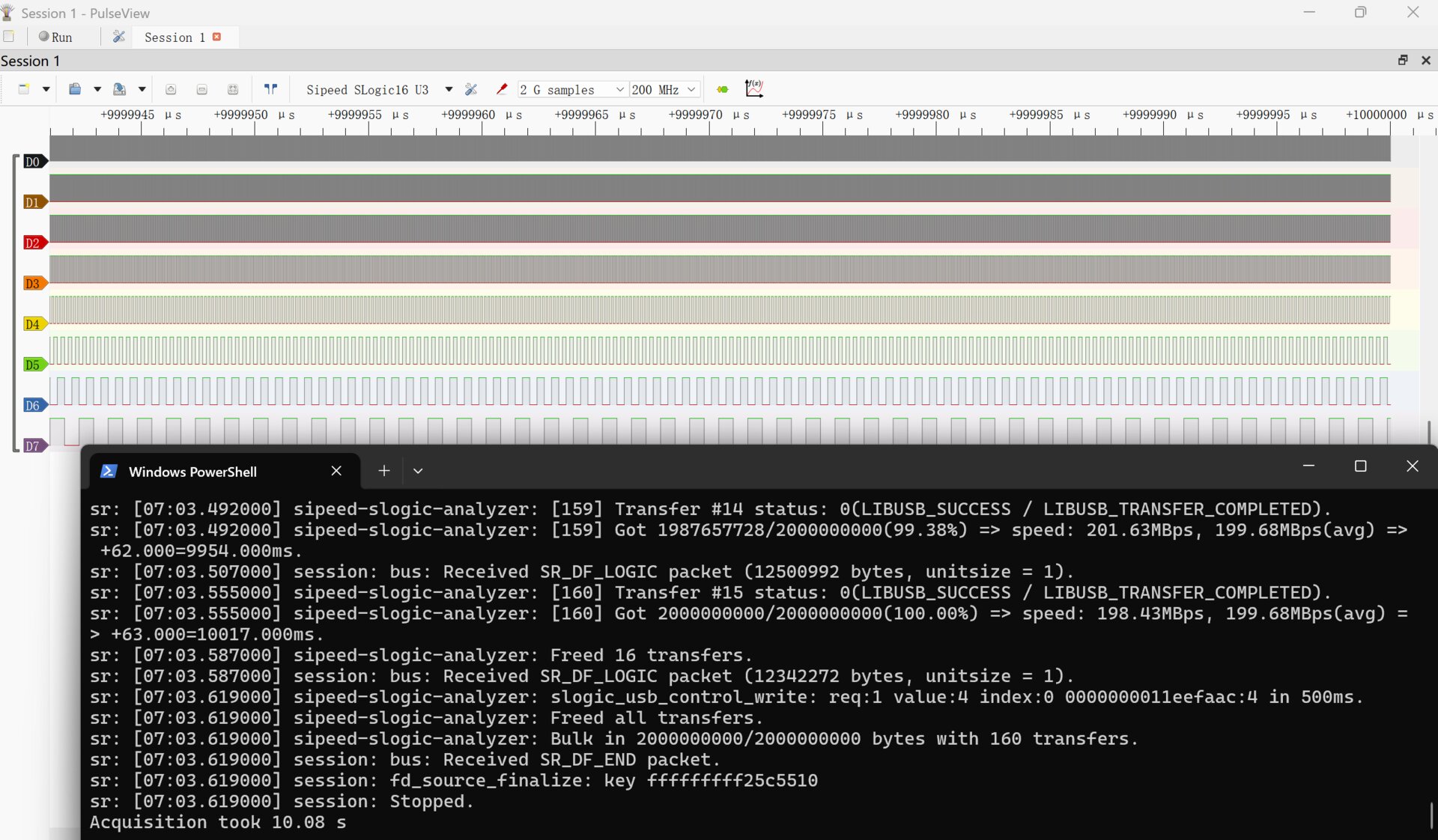
- Extract the portable archive and double-click
pulseview.exeto launch.
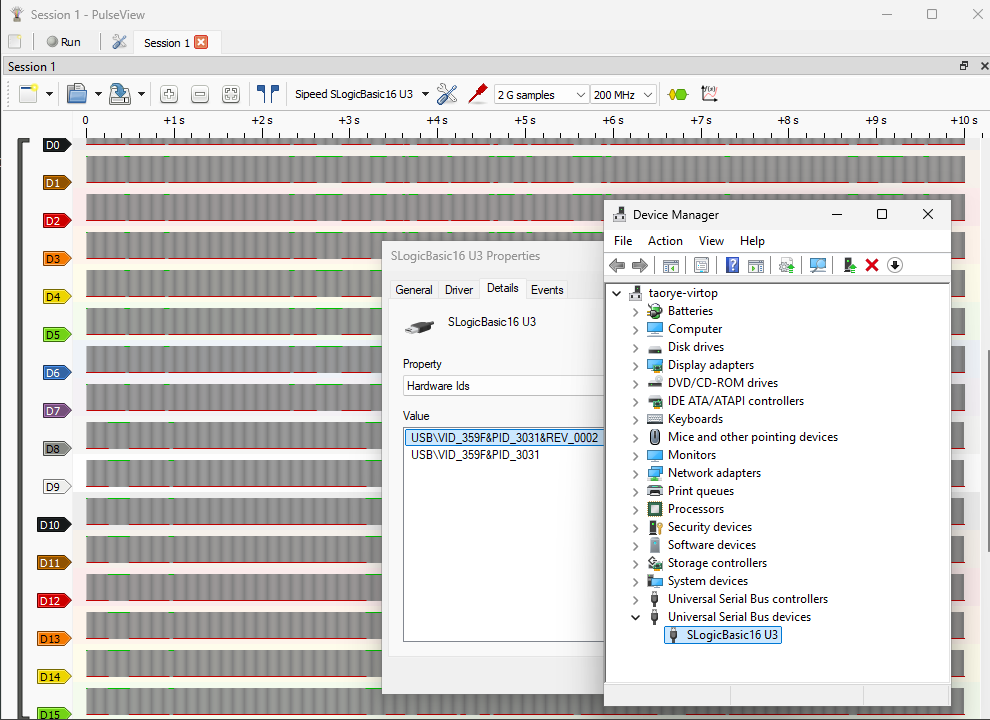
- To enable debug mode, run in terminal:
pulseview-debug.exe -l5
Linux
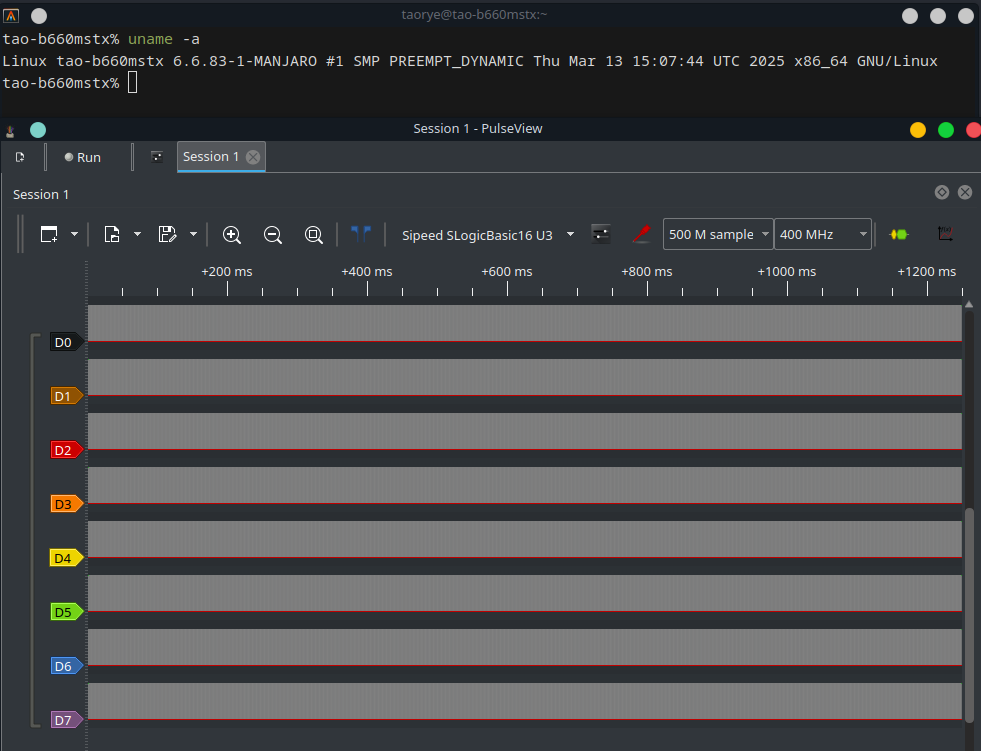
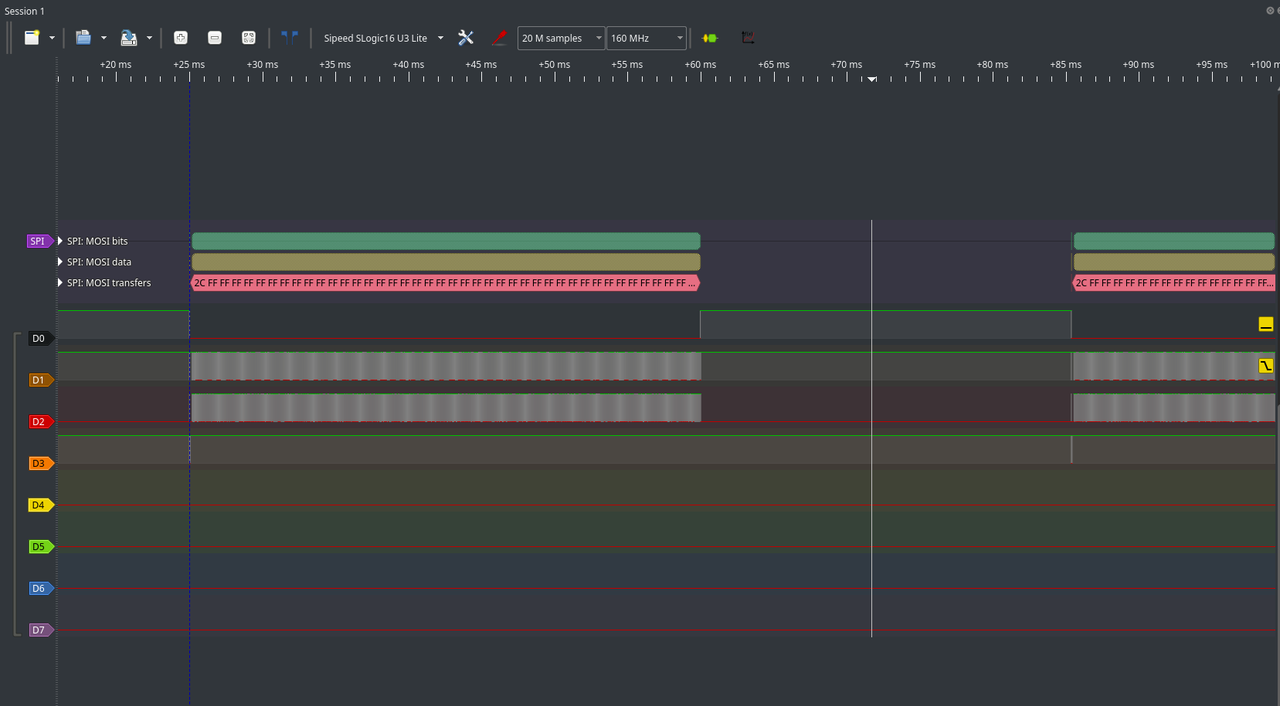
chmod +x Pulseview.appimage
./Pulseview.appimage
# ./Pulseview.appimage -l5   # enable debug mode
macOS
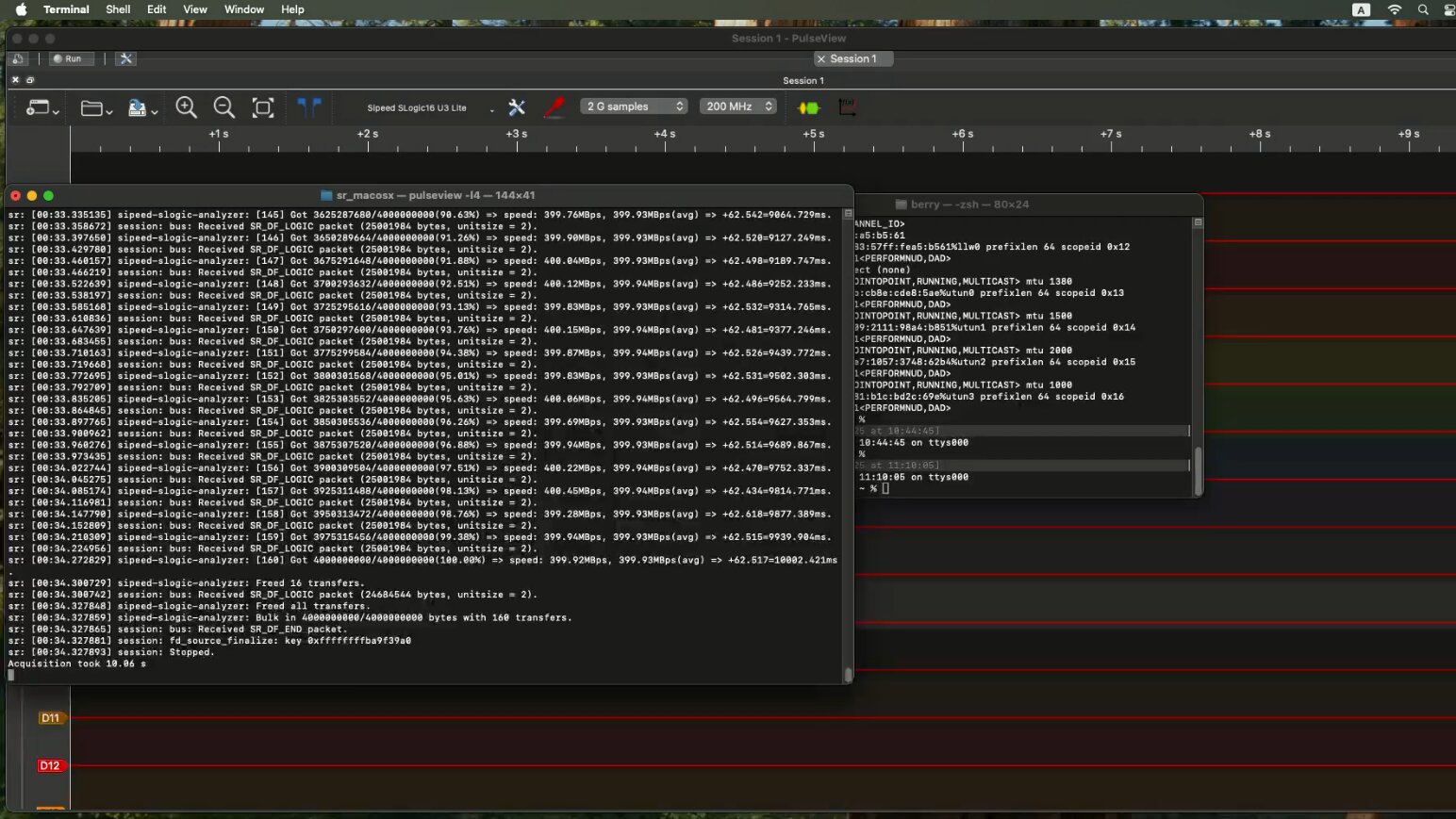
- Download and open
Pulseview.dmgto install.
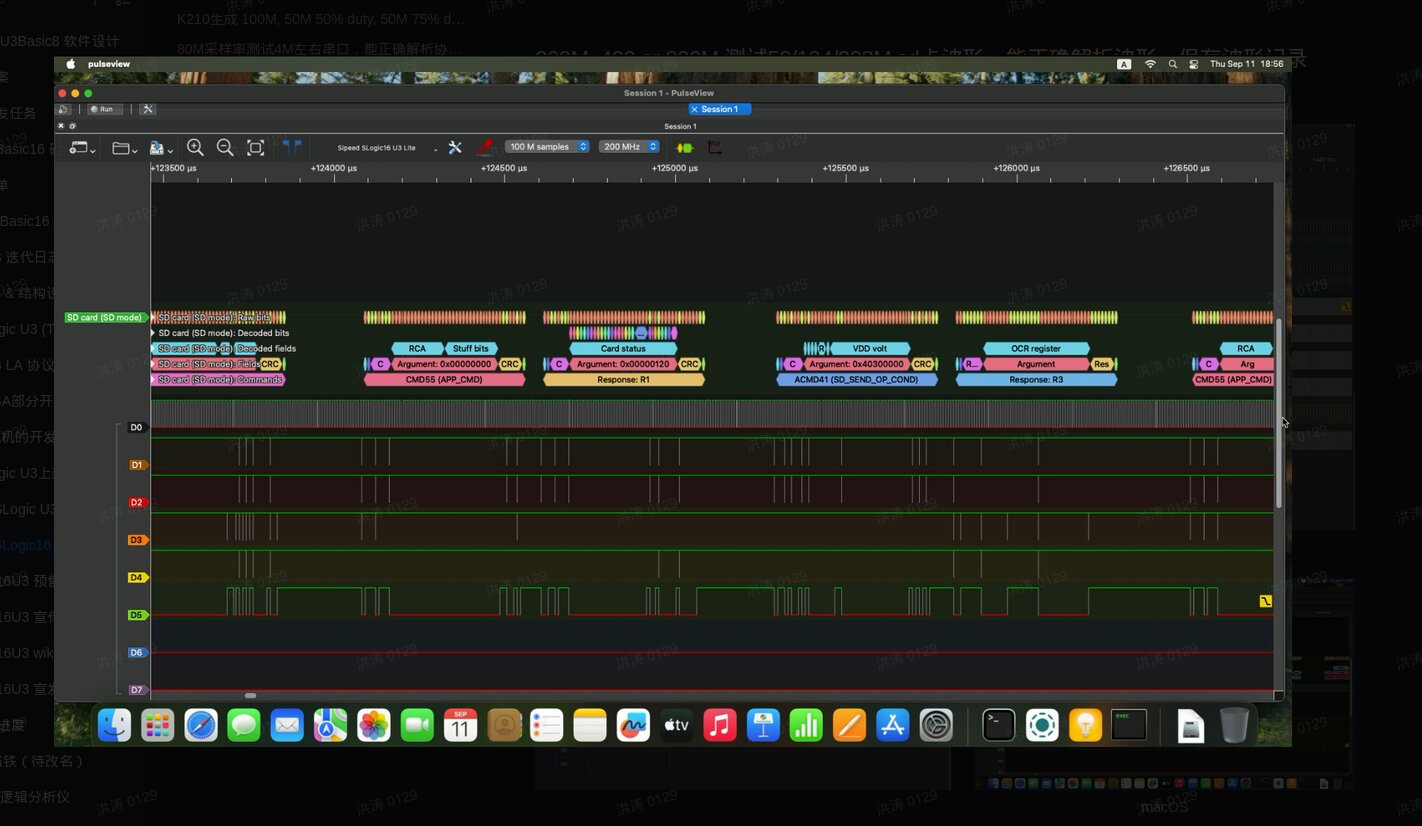
Related Links:
Taobao, AliExpress, MaixHub
Email: support@sipeed.com
Software Usage
- The interface and workflow are similar to DSView.
- Configure channels, sample rate, sample points/time, and other parameters as needed.
- Use the software to trigger, acquire, browse, measure, decode protocols, and manage files.
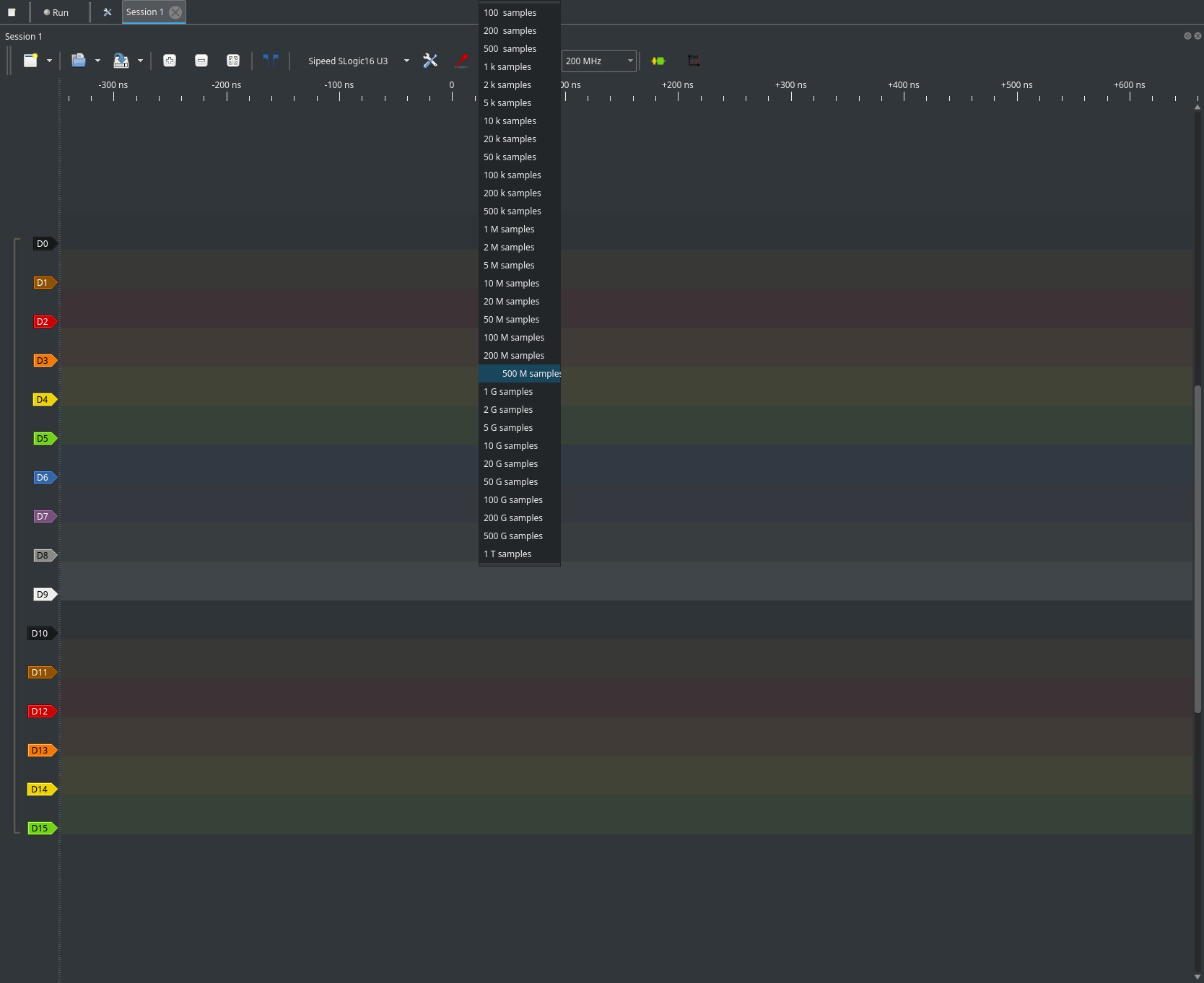
Changing the Sample Depth
- The sample depth determines how many data points are captured per acquisition.
- You can set the sample depth in the main control panel, typically as either a number of points.
- Higher sample depth allows capturing longer or more detailed signal traces, but requires more memory and may take longer to transfer.
- If you only need to capture short events, reduce the sample depth for faster operation.
- Adjust the sample depth before starting acquisition to fit your analysis needs.
- Sample depth is unlimited if you have a large enough disk; data can be streamed directly to storage.
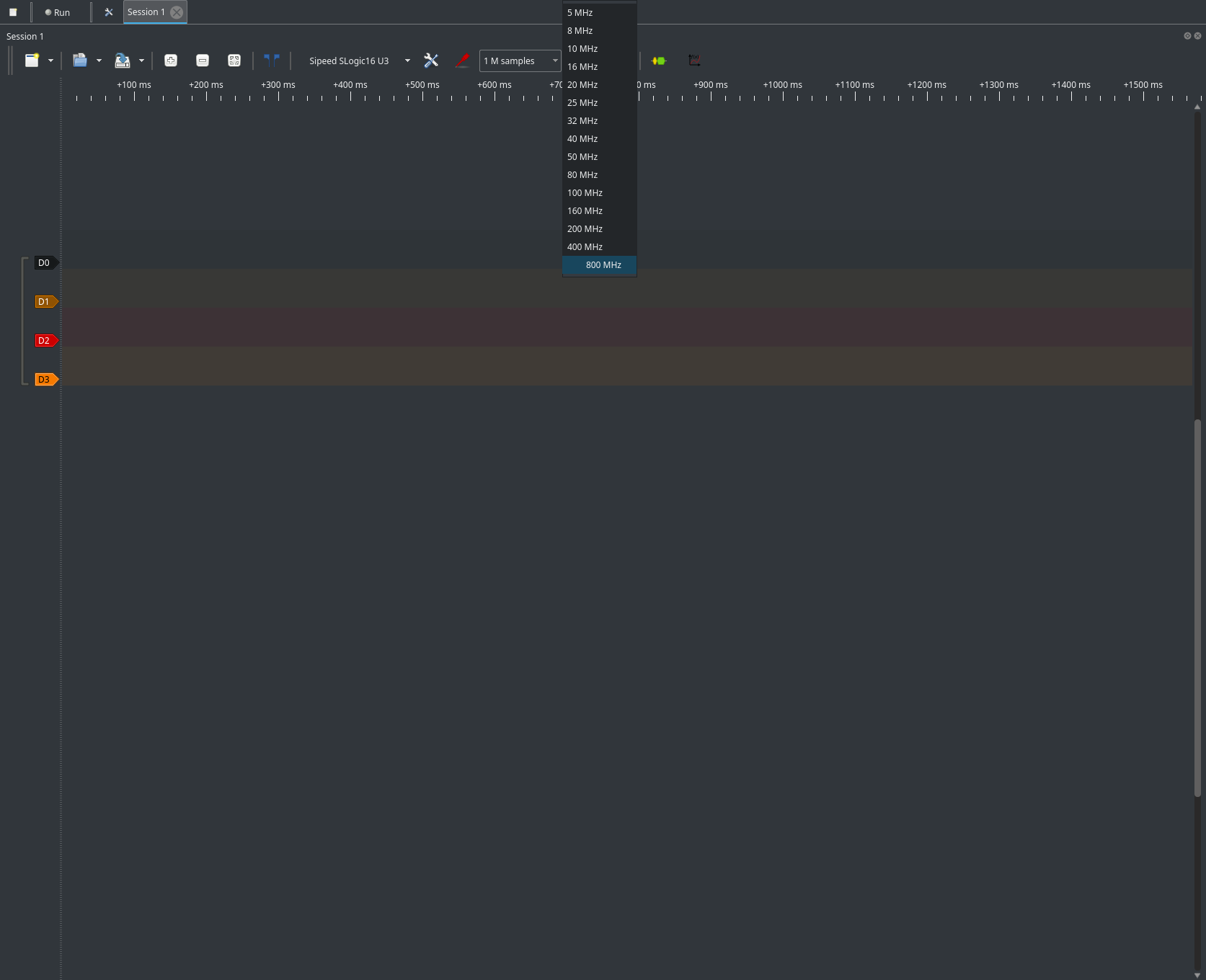
Changing the Sample Rate
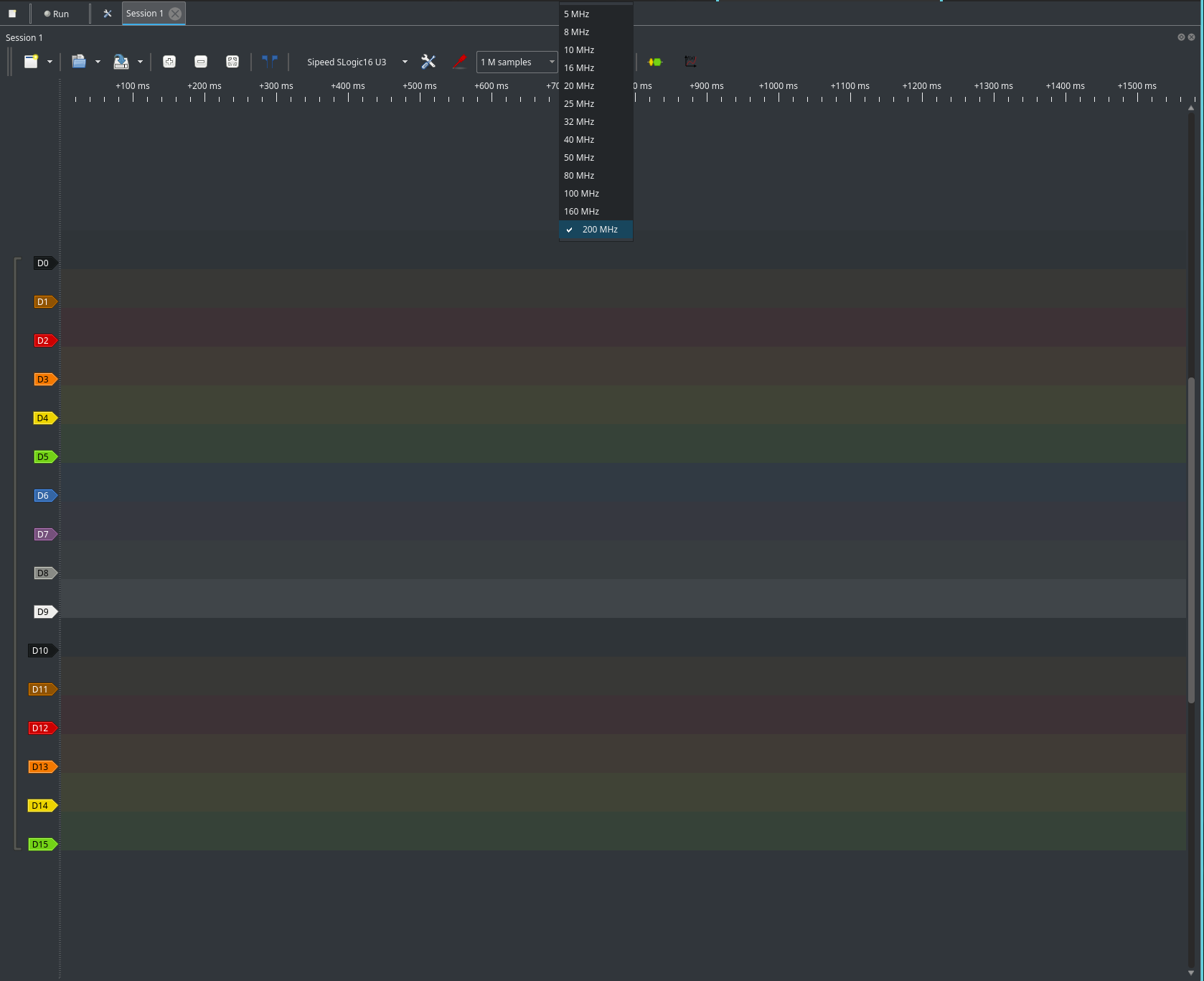
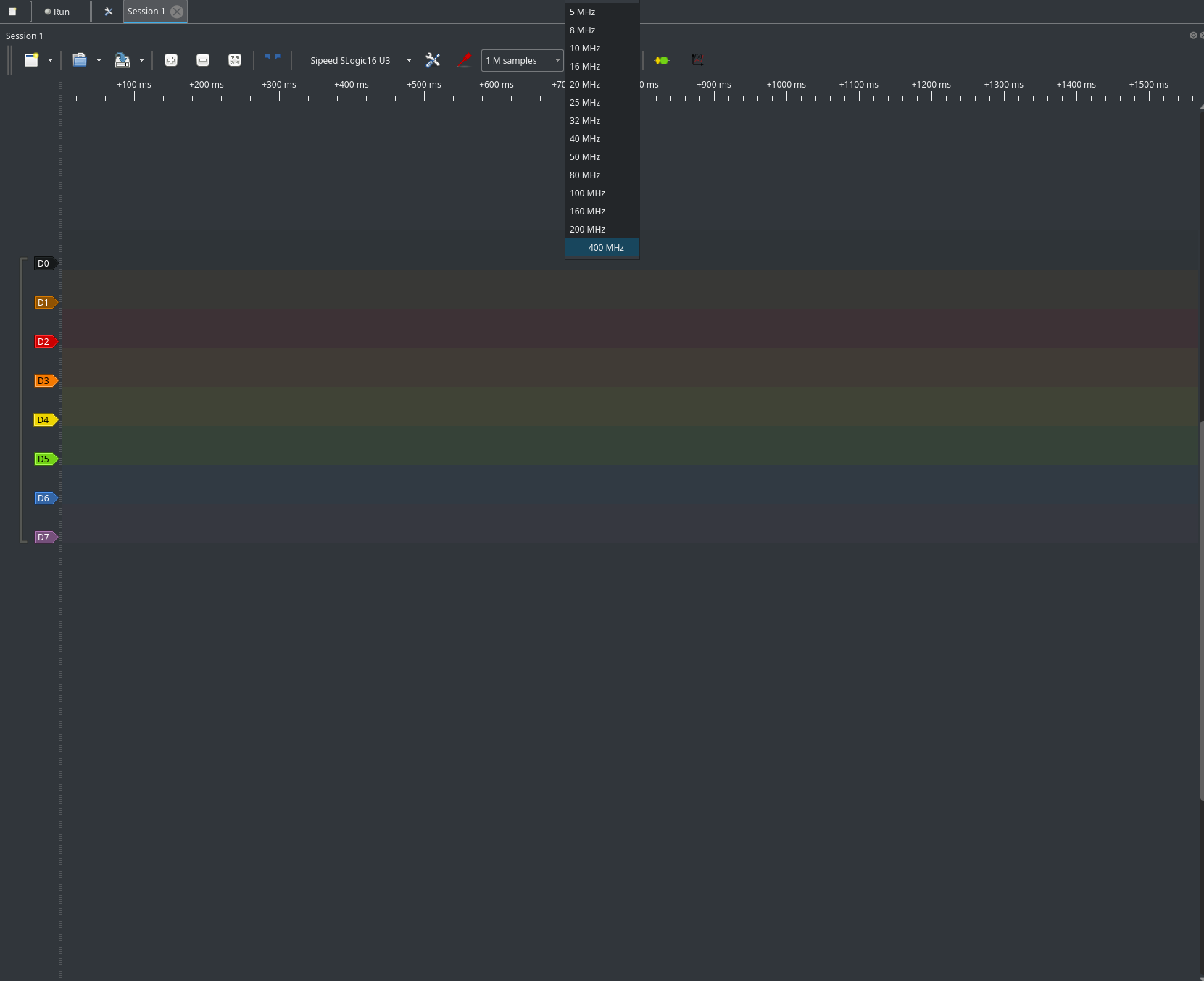
- Max sample rate: 800 MHz (depends on active channels)
- 16 channels: up to 200 MHz
- 8 channels: up to 400 MHz
- 4 channels: up to 800 MHz
- Set the sample rate in the main control panel.
- If higher rates are unavailable, disable unused channels.
Selecting Active Channels
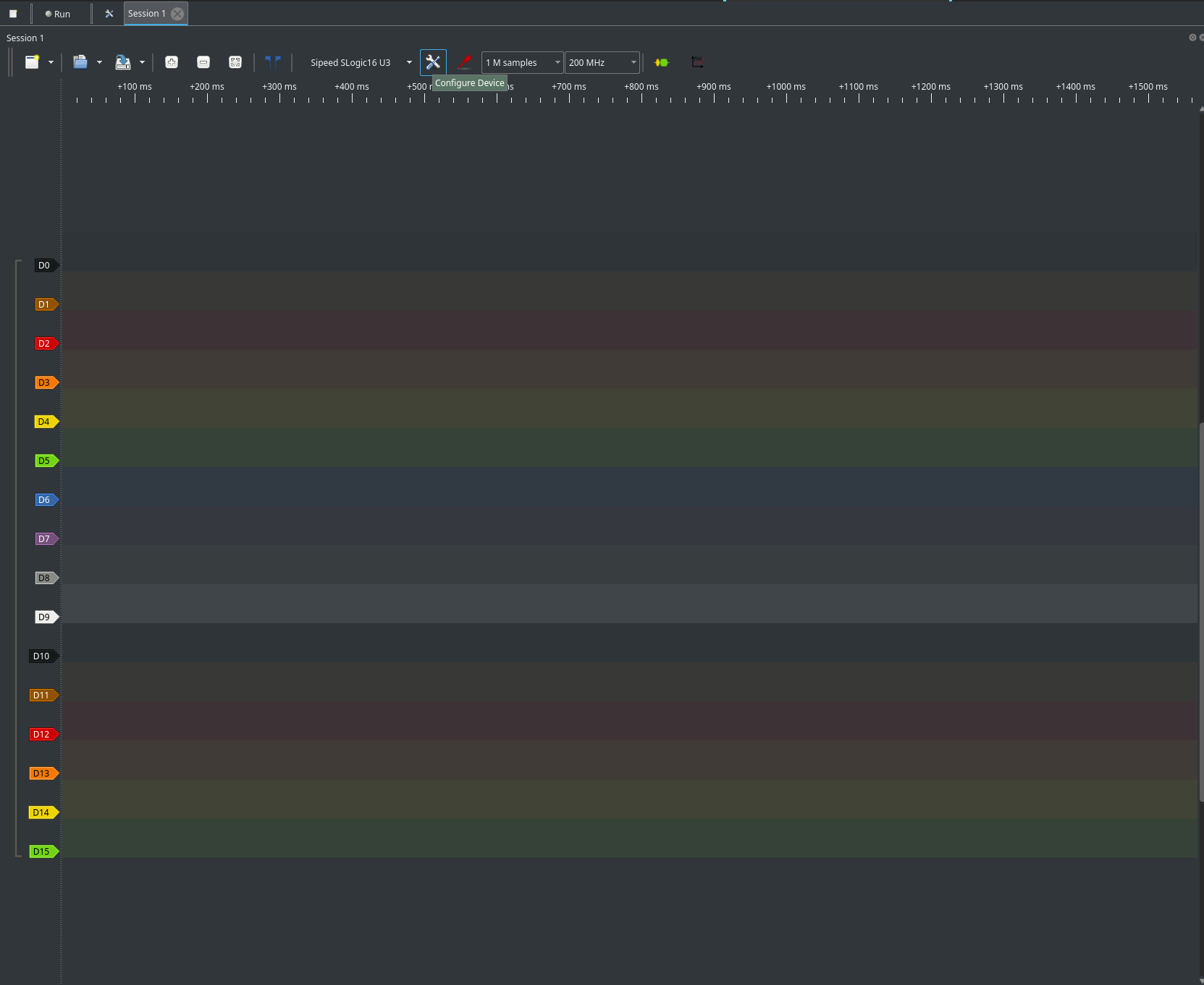
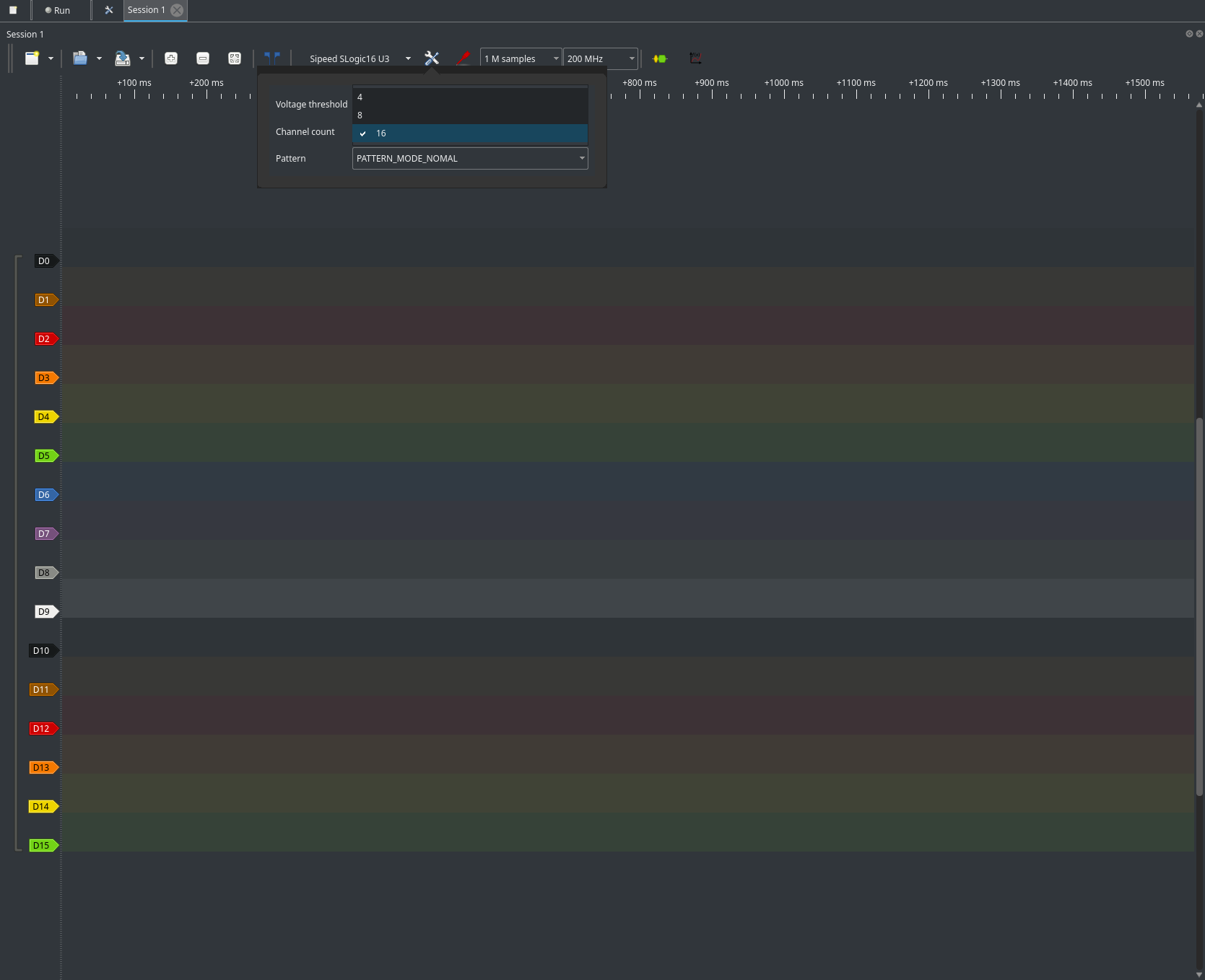
- Choose between 16, 8, or 4 channel configurations.
- Enable/disable channels in the configuration area.
- Fewer active channels allow higher sample rates.
Adjusting Voltage Threshold
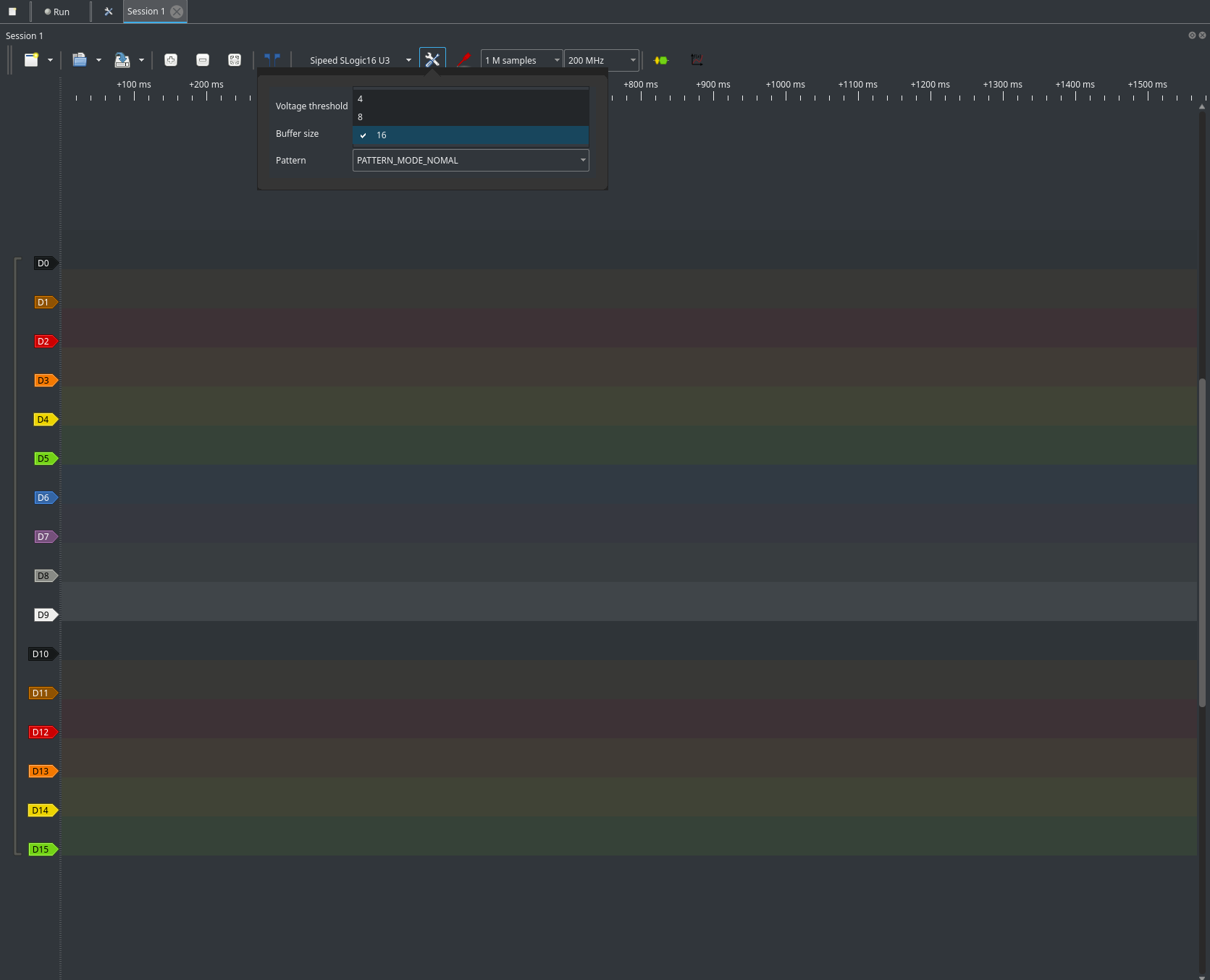
- Set threshold from 0.1V to 6.0V in 0.1V steps.
- Adjust in the channel/device configuration panel.
- Match threshold to your logic level (e.g., 1.0V for 3.3V CMOS).
- Apply changes before acquisition.
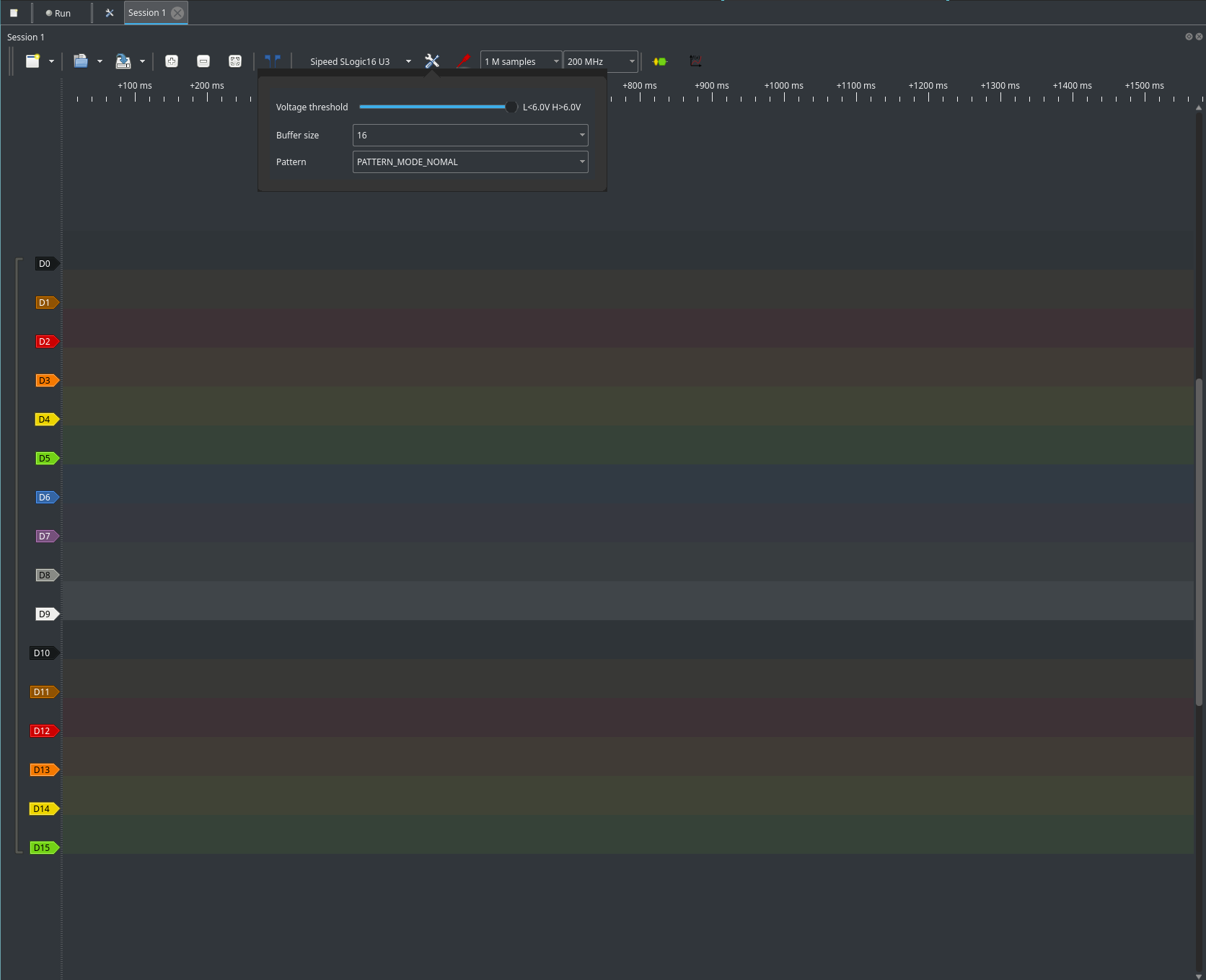
Tip: For 3.3V CMOS/TTL, set threshold to ~1.0V (30% of 3.3V).
Edge Trigger
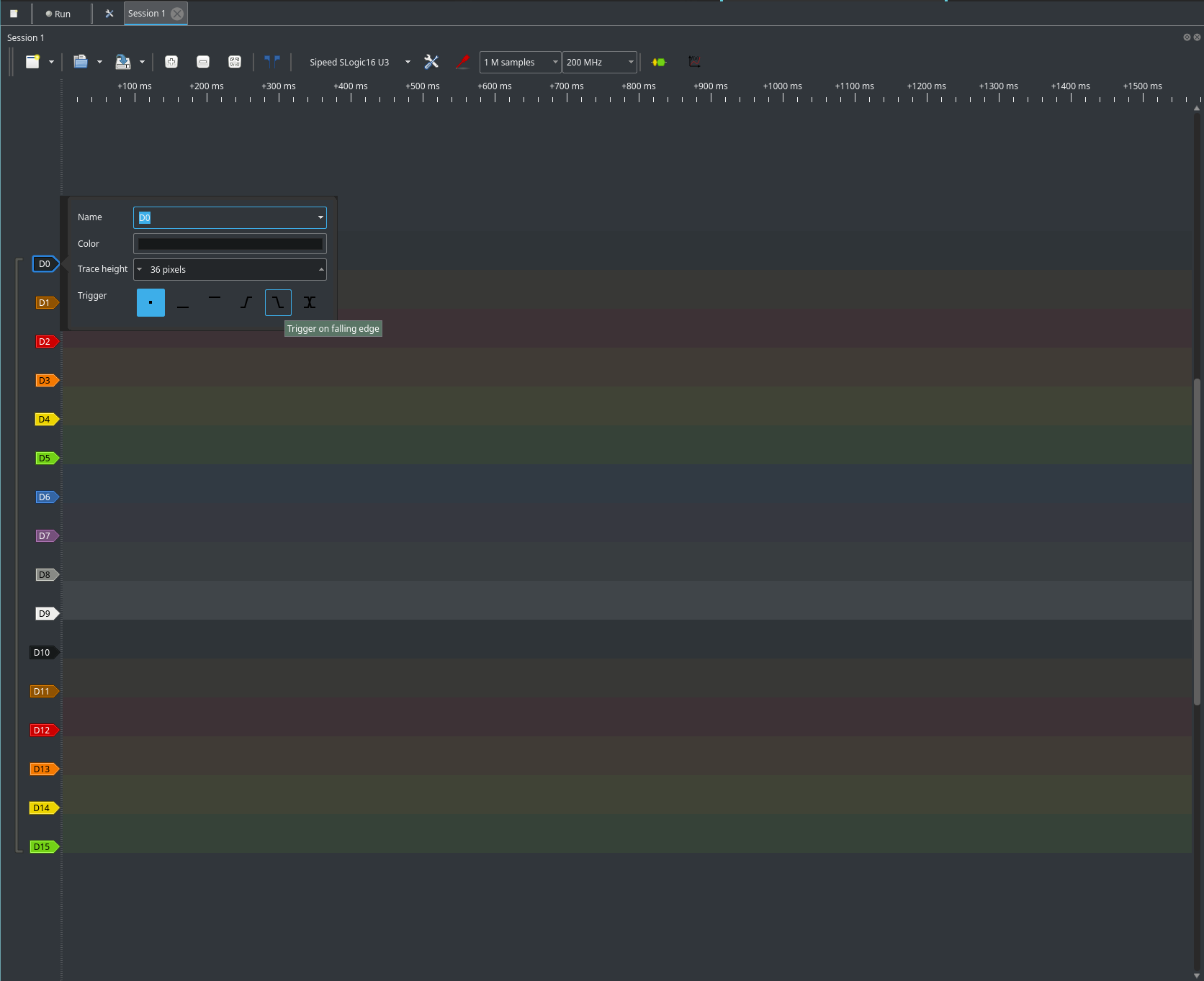
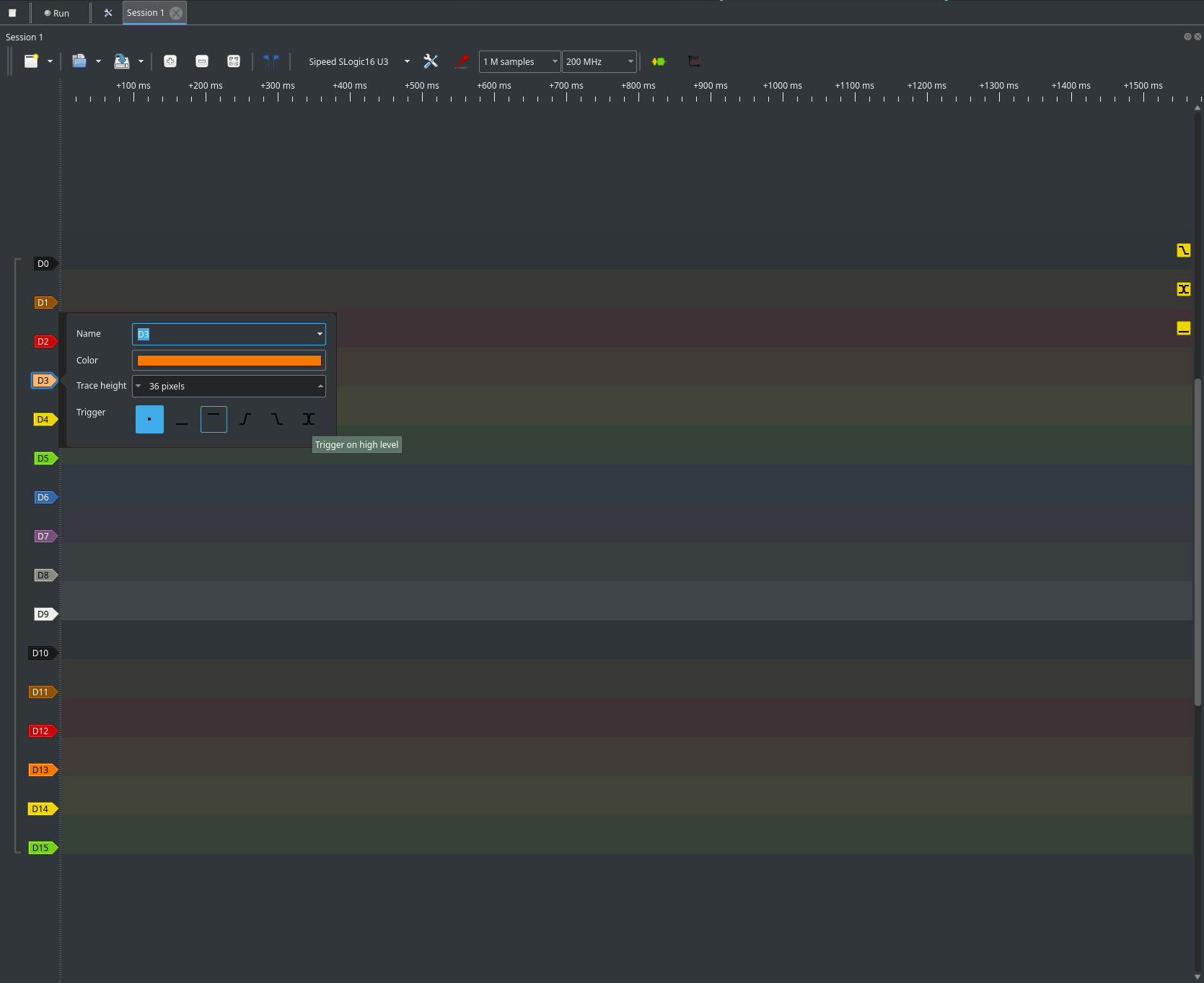
- Configure edge trigger to start capture on a specific signal transition.
- In the trigger panel, select channel and trigger type (rising, falling, or both).
Build Software from Source
The software is open source.
Recommended: Use sigrok-util build scripts for a simple, cross-platform experience.
Steps:
- Clone sigrok-util and follow its README for dependencies.
- Edit the build script to use Sipeed's libsigrok fork:
$GIT_CLONE https://github.com/sipeed/libsigrok -b slogic-dev - (Optional) Add options to speed up build and reduce size:
--disable-all-drivers --enable-sipeed-slogic-analyzer --disable-bindings --enable-cxx - Run the build script for your target (e.g.,
./sigrok-cross-linux,./sigrok-cross-mingw,./sigrok-cross-macosx).
For advanced/manual builds, refer to upstream sigrok and PulseView documentation.
Firmware Update
SLogic16U3 firmware is updated online with the web tool SLogic Firmware Update (https://slogic.sipeed.com/ota/) — nothing to download or install.
- Browser: Chrome, Edge or another Chromium-based browser on a computer (updates use WebUSB, which Firefox and Safari do not support).
- Driver: no driver is needed on Windows. On Linux, run the following once to allow your user to access the analyzer, then re-plug it (the page shows it too):
sudo tee /etc/udev/rules.d/60-slogic.rules >/dev/null <<'END' SUBSYSTEM=="usb", ATTRS{idVendor}=="359f", ATTRS{idProduct}=="0300|3031|3032|30f1|30f2", MODE="0666", TAG+="uaccess" END sudo udevadm control --reload-rules && sudo udevadm trigger - USB cable: use a USB data cable plugged directly into the computer, not a charging-only cable or an unpowered hub.
- Firmware downloads: SLogic16U3 firmware (
app.bin); future updates are published here too.
Update steps:
- Download the latest firmware file.
- Open https://slogic.sipeed.com/ota/ in Chrome / Edge, connect the SLogic16U3 with a USB cable and click Select device.
- Follow the page to enter update mode: press the MODE button on the device (see Hardware Guide · MODE Button); the LED shows cyan with a slow red blink. Then select "SLogic DFU" in the browser dialog.
- Choose the downloaded firmware file and click Update firmware. Keep the device connected and the page open until the update finishes.
- When the update finishes, unplug the device and plug it back in to start the new firmware.
In principle the update only replaces the SLogic firmware and never touches the DFU (update-mode) function. Even if an update fails, the device stays in update mode — keep it connected and run the update again.
See Hardware Guide · Firmware Update for more on browsers, drivers and firmware downloads.
FAQ
Why can't I find the SLogic16U3 device in Linux?
Normal users can't access USB devices by default.
Run Pulseview with sudo:
sudo ./Pulseview.appimage
Or set up udev rules (see below).
How do I set up udev rules for Linux?
Create a new udev rules file:
sudo tee /etc/udev/rules.d/60-sipeed.rules <<EOF
SUBSYSTEM!="usb|usb_device", GOTO="sipeed_rules_end"
ACTION!="add", GOTO="sipeed_rules_end"
ATTRS{idVendor}=="359f", MODE="0666", GROUP="plug_dev", TAG+="uaccess"
ENV{ID_MM_DEVICE_IGNORE}="1"
LABEL="sipeed_rules_end"
EOF
Reload udev rules and trigger:
sudo udevadm control --reload
sudo udevadm trigger
Unplug and reconnect the device.
You can now run Pulseview as a normal user.
Why can't I use higher sample rates? Only 200M shows.
The maximum sample rate depends on the number of active channels and USB bandwidth.
Slogic16U3's USB 3.0 provides up to ~400MB/s.
To use higher rates (400M/800M), disable unused channels.